
Send announcements on WhatsApp
Download PDFWhen something changes at short notice, like snow, a cancelled class or a cover teacher, a WhatsApp message is the one families see straight away. Labbaik sends it to each family or teacher individually, greeted by their own first name.
Messages come from Labbaik’s own WhatsApp account, @labbaik, not from your organisation’s phone. Families see Labbaik as the sender, so it’s worth telling them to save the number.
Every message names your organisation, so parents, students and staff always know who it’s from, even though it comes from Labbaik’s number.
Admins and head teachers can send them.
Why you can’t type your own message
Section titled “Why you can’t type your own message”WhatsApp doesn’t allow it. Meta, the company that runs WhatsApp, doesn’t let organisations send their own typed messages to people. Every message has to use wording Meta has checked and approved beforehand, called a template.
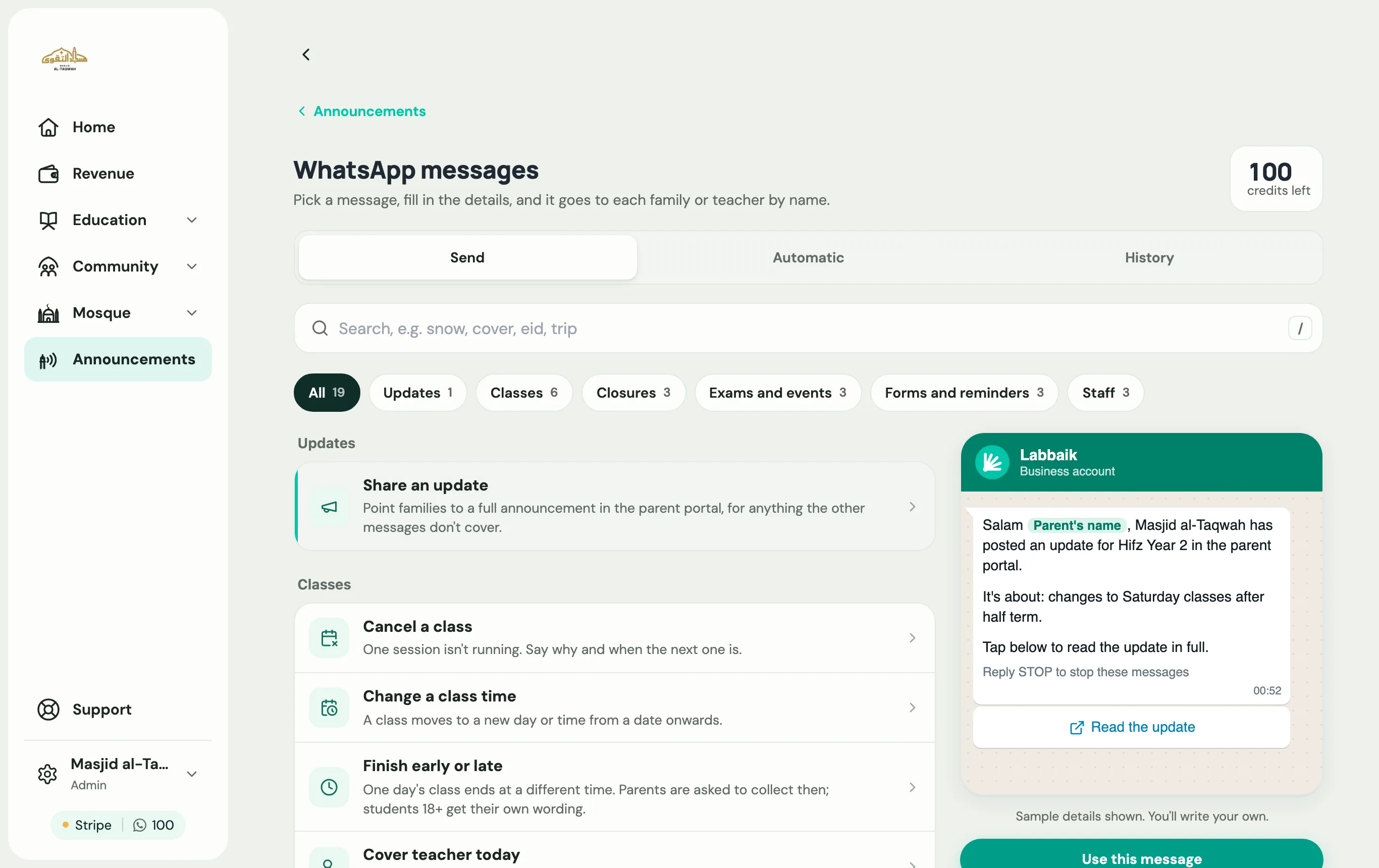
So Labbaik has written a set of templates and had them approved. You choose the one that fits, such as Closed today or Cancel a class, and fill in the details: the class, the reason, the date. Everything around your details is fixed wording that you can’t change.
For anything the messages don’t cover, use Share an update. It tells families there’s a new announcement and gives them a Read the update button that opens it in the parent portal. Write the full announcement first, then send this.
Send a WhatsApp message
Section titled “Send a WhatsApp message”-
Go to Announcements and choose Write a WhatsApp message on the WhatsApp card.
-
Find the message you need. Browse the groups, or search for a word like snow, cover, eid or trip. The preview on the right shows what people will receive, with sample details. Choose Use this message.
-
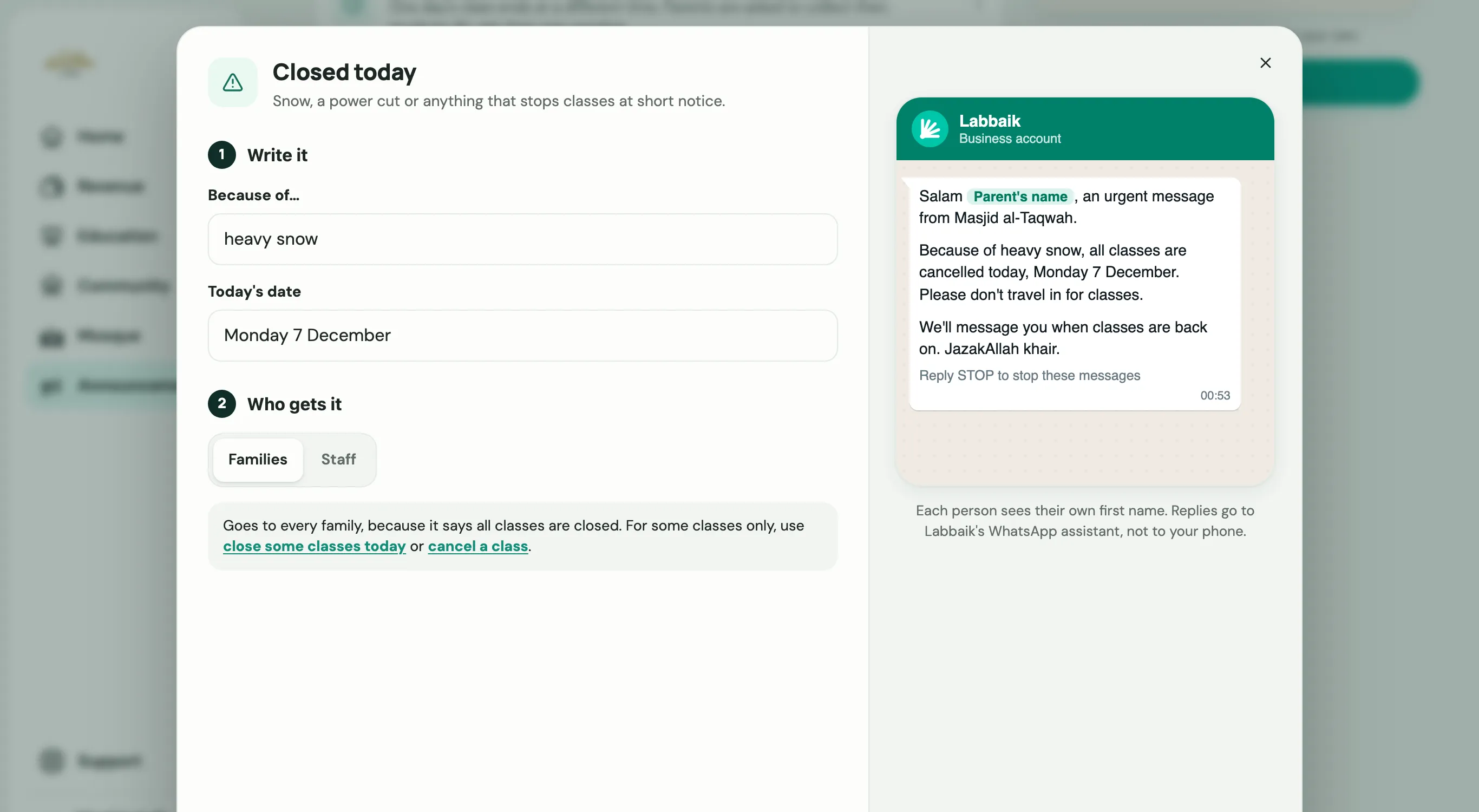
Under Write it, fill in each box. The preview fills in as you type, and any box still empty shows as a highlighted blank you can tap to jump to it.
-
Under Who gets it, choose:
- Families or Staff, for messages that suit both
- All classes, or Choose classes to pick by programme and class
- Boys and girls, Boys only or Girls only
-
Check the line at the bottom. It shows how many people the message will reach and how many credits it uses. Nothing is sent yet.
-
Choose Send to …. The message starts going out straight away, and you can watch it under History.
The messages
Section titled “The messages”| Group | Messages |
|---|---|
| Updates | Share an update |
| Classes | Cancel a class · Change a class time · Finish early or late · Cover teacher today · Introduce a new teacher · Classes restart |
| Closures | Closed for a holiday · Closed today · Close some classes today |
| Exams and events | Test coming up · Invite to a class event · Parents’ evening |
| Forms and reminders | Ask for a form back · What to bring · Confirm next term’s place |
| Staff | Staff meeting or training · Ask for cover · Staff deadline |
Closed today and Closed for a holiday say all classes, so they always go to every family. If only some classes are affected, use Close some classes today or Cancel a class instead.
A message marked Awaiting approval is still being checked by WhatsApp, usually within an hour. You can fill it in, but you can’t send it until it’s approved.
Who it reaches
Section titled “Who it reaches”Labbaik sends a family’s message to the phone number on the student’s record, trying the WhatsApp number first, then the mobile, mother’s mobile, home and extra phone numbers. Staff messages go to every teacher and staff member with a mobile number.
If some students have no number on file, the send window says how many. Choose Add their numbers to type them in there and then, without leaving the message.
Credits
Section titled “Credits”Each message uses 1 credit for each person it reaches. A message to 120 families uses 120 credits. Every organisation gets 100 free credits to try it out, for a test or a small announcement to one class.
Your balance shows at the top of the WhatsApp page. If you don’t have enough credits for a message, the send window tells you how many it needs, and Send stays off until you top up. See WhatsApp credits for how to buy more and the prices.
Replies and stopping messages
Section titled “Replies and stopping messages”- Replies go to Labbaik’s WhatsApp assistant, not to your phone. The messages ask families to contact the office or the class teacher instead.
- Stopping: messages to families end with Reply STOP to stop these messages. Anyone who replies STOP won’t get these messages any more, or Labbaik’s other WhatsApp messages to families, like reports and payment messages. They’re counted as opted out in your history.
- No double sends: if the same message, with the same words, was sent in the last 10 minutes, Labbaik won’t send it again. A double tap can’t message everyone twice.
See what you’ve sent
Section titled “See what you’ve sent”The History tab lists every WhatsApp message your organisation has sent: who sent it, when, and how many it reached. Each one shows how many were sent, and any that failed, opted out or had no number. Choose Use again to send the same message again with the same details, ready to change.
The Automatic tab lists the WhatsApp messages Labbaik sends for you, like reports and attendance updates. The ones that use credits can be switched off there.