
Add staff and set permissions
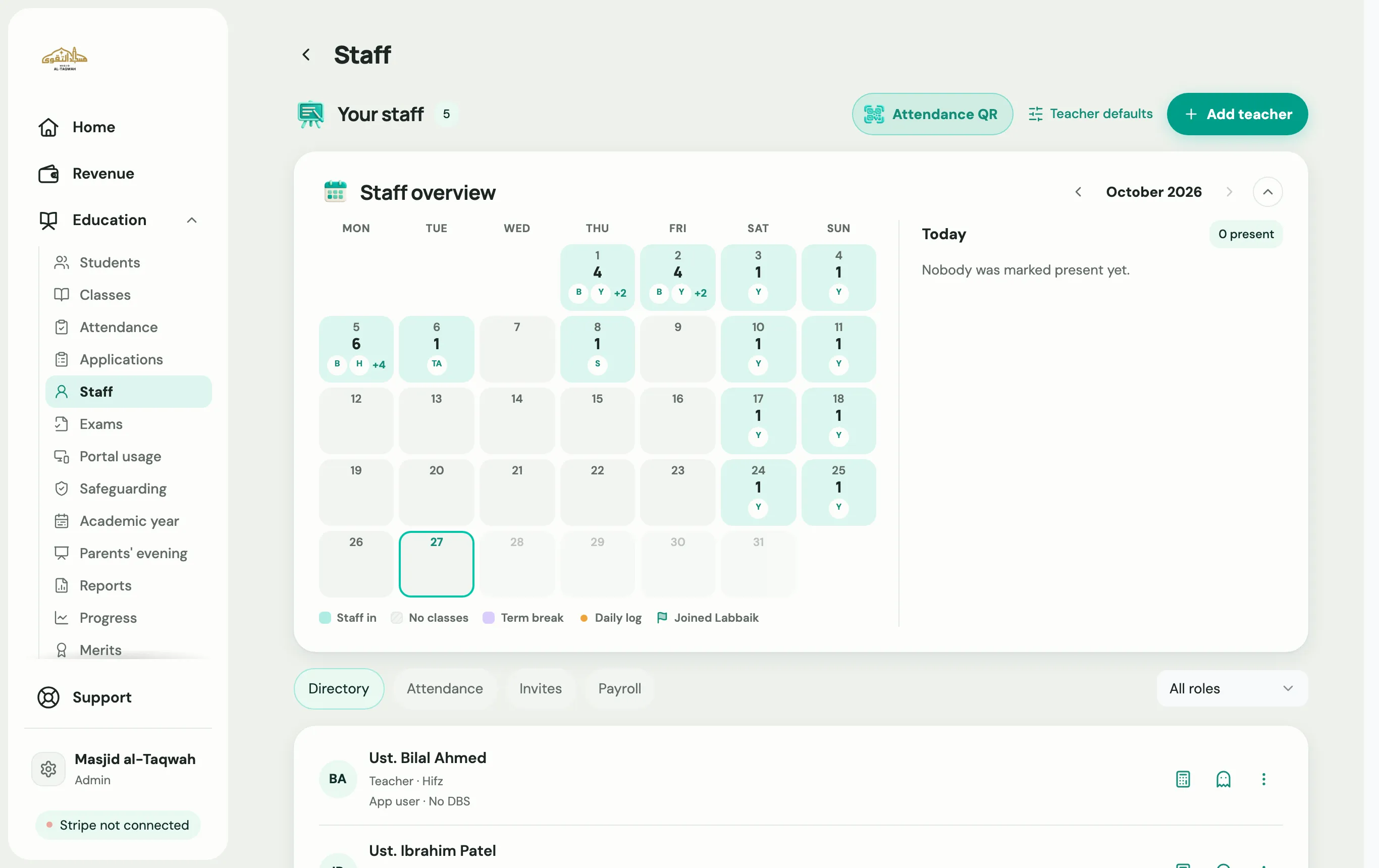
Add a staff member
Section titled “Add a staff member”-
Go to Education → Staff and choose Add teacher. You can also choose Add teacher on Home.
-
Who: enter their name and email.
-
Role & access: choose their role, then answer How will they use Labbaik?:
- App access: Labbaik emails them an invite so they can sign in on their own phone.
- No login — record only: they’re on your staff list, for pay and registers, but can’t sign in.
- Existing login — no invite sent: they already use Labbaik, so they don’t need an invite.
-
Classes: choose the classes they teach, and whether they’re the lead or an assistant in each one.
-
Permissions & review: tick any extra permissions (see below), then choose Send invite, or Create staff record for record-only staff. For roles with no extra permissions, this step is just Review.
| Role | Can do |
|---|---|
| Admin | Everything, including fees, settings and other staff. |
| Head teacher | Oversees teaching across classes, and gets absence reports for every class. |
| Teacher | Takes registers, logs progress and sets homework for their own classes. |
| Substitute teacher / Temporary teacher | Covers classes for a while. |
| Member | On your staff list with no teaching role. |
Extra permissions for teachers
Section titled “Extra permissions for teachers”Teachers start with the basics. You can switch these on one person at a time:
- View contact details
- View student card
- Move group
- Add students
- Mark students as left
- Send voice notes
- Upload session recordings
- Log cash and bank payments
- See fees for their students