
Log progress
Progress is where teachers record what each student has covered. Parents see it in the parent portal, and it feeds reports and the admin’s progress feed.
This page covers finding students and saving. For what to fill in for each subject, see:
Who needs an update
Section titled “Who needs an update”Open the Progress tab. The This month card shows how many students need an update, split into four:
| Status | Means |
|---|---|
| Up to date | Progress saved recently. |
| Due | Time for an update. |
| Overdue | Longer since the last update. |
| Needs attention | The longest gap. These students come first. |
For most classes the clock is monthly: a student is due after 30 days, overdue after 60 and needs attention after 90. Daily classes, such as Hifz, count missed class days instead: due after one, overdue after two, and needing attention after five. Your admin can change these for a class.
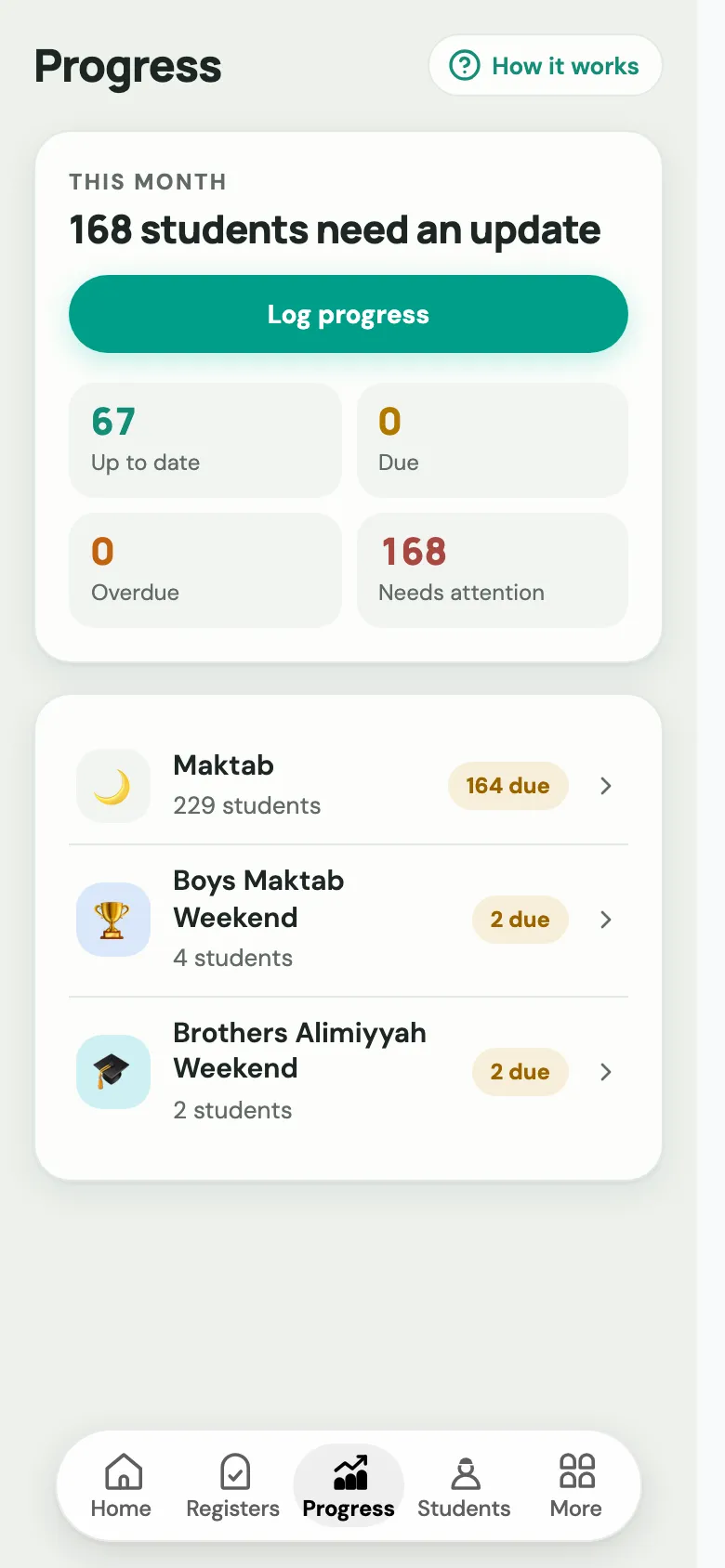
Below the card, tap a programme, then a class. Each class shows how many are due. In the student list you can search, filter by Needs update or Up to date, and sort By group, Most overdue or A–Z. Tap a student to open their progress.
Three ways to log a class
Section titled “Three ways to log a class”Choose Log progress and pick the class. Labbaik asks how you’d like to work:
- Quick register: a fast pass through the whole class, one line per student. Best for Qa’idah and Qur’an in a busy lesson. See below.
- Work through the class: opens each student in turn, in order, and moves on when you save.
- Choose one student: find someone quickly and update just them.
You can also start from Home: Quick progress on a class card (for Qa’idah, Qur’an and duas), or Log Hifz on a Hifz class. After saving a register, Labbaik asks Log progress now?, so you can go straight through the students who were there.
Quick register
Section titled “Quick register”For each student, choose:
- Same: still on the same lesson. Nothing changes.
- Next: they’ve got it. That lesson is marked Secure, and the next one becomes Learning.
The first time, set Where are they up to? for each student. To start a whole new class at the same place, use Start all N at…. If everyone moved on, choose Everyone moved on. Finish with Save · N marked. Parents get a notification about the update.
A student’s progress sheet
Section titled “A student’s progress sheet”Opening one student shows their progress sheet:
- At the top: Attendance this year, Last progress, Progress over time, and their Student card.
- [Month] progress, with a tile for each subject they study. Each tile says Tap to fill or Saved, and the sheet shows N of M done.
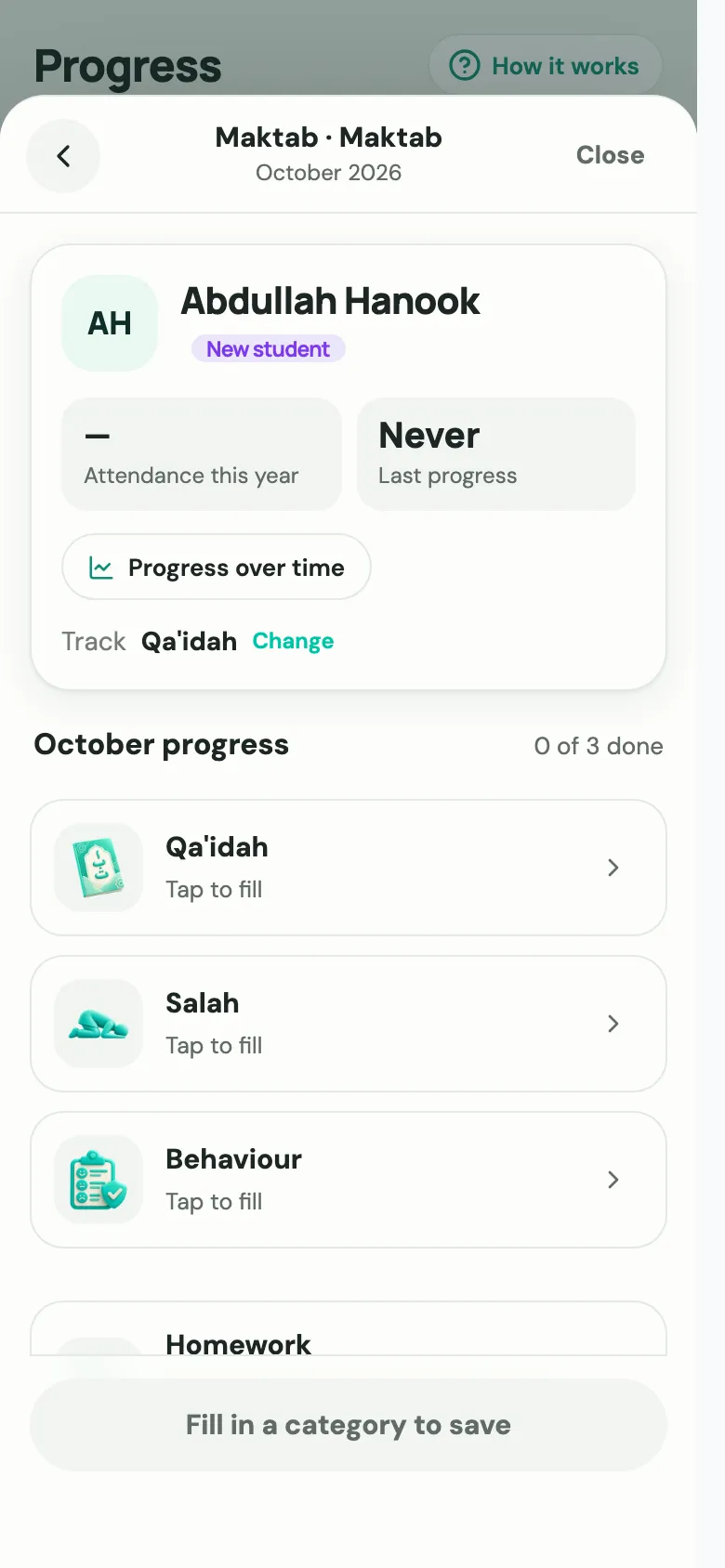
Tap a subject to fill it in, then choose Save progress at the bottom. Until something is filled in, the button reads Fill in a category to save. This saves the month’s progress and emails the parents a summary.
Books and syllabus subjects
Section titled “Books and syllabus subjects”For Islamic studies and other books, choose Which book?, then the Topic this month, the Page reached and their Engagement. Under Who is this for?, you can save the same entry for the whole class at once (Save for N students) or just one student.
Book checklists have Done and Skip for each section. Only skip sections you won’t teach; they count as complete.
Where to see past progress
Section titled “Where to see past progress”- Progress over time on a student’s sheet
- The History view in Hifz
- For admins: the Progress tab on a student’s profile, and Education → Progress for a live feed across the organisation