
Exams
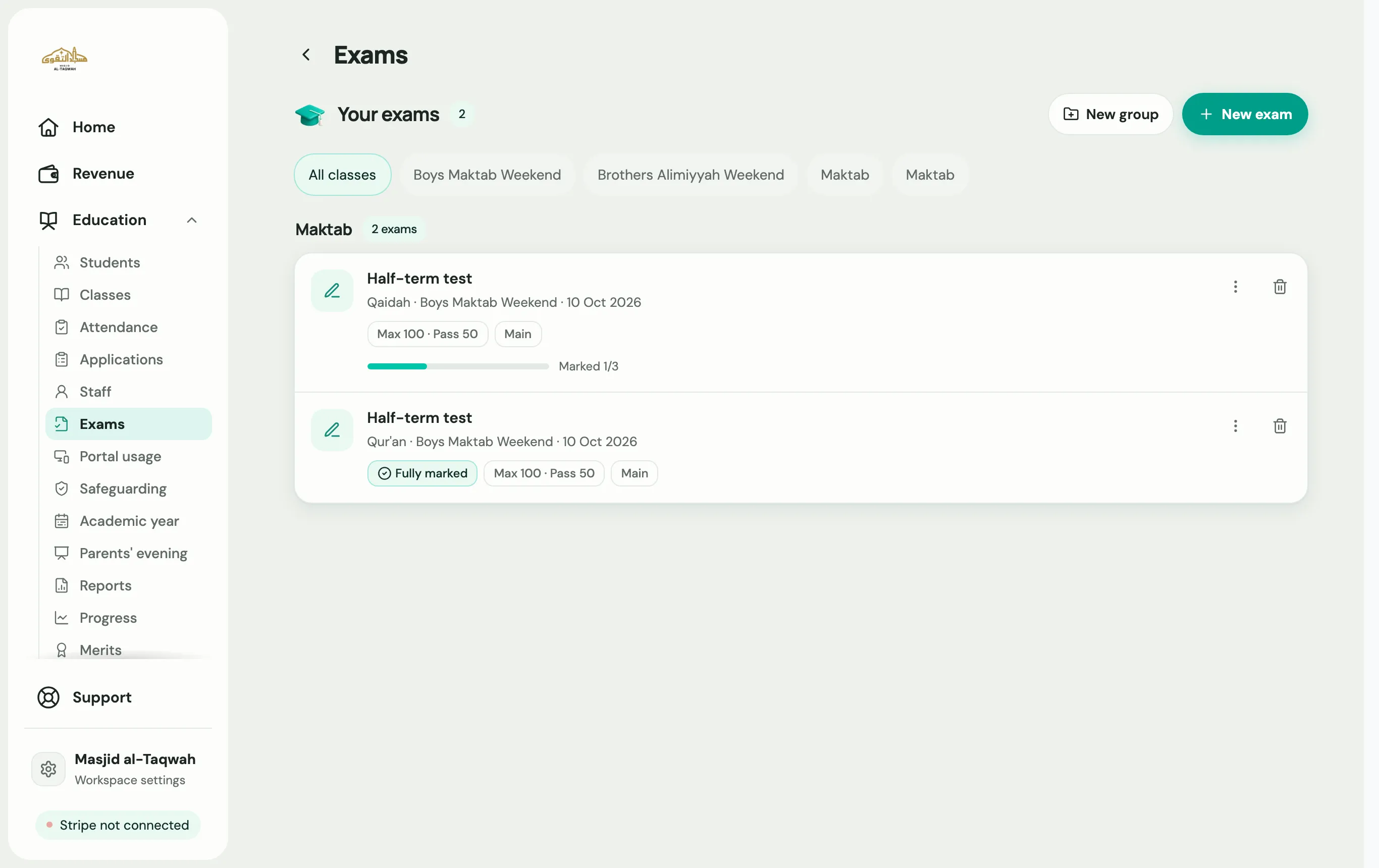
Admins, head teachers and teachers can all create exams. Teachers find them under More → Exams in the teacher portal, and admins under Education → Exams.
Create an exam
Section titled “Create an exam”-
Open Exams and choose New exam.
-
Exam details:
- Pick the Class, and a Group if only part of the class is sitting it.
- Who’s taking it? Whole class, or Select students.
- Exam type: Written or Oral.
- Give it an Exam name and Subject, and set the Target max marks and Pass mark.
- Where: In person, Online or Hybrid. For a timed online exam, switch on Timed exam and set the Time limit (minutes).
-
Choose Next. Labbaik saves it as a draft.
-
Questions: choose Add for each question, written or multiple choice, with its marks. For an oral exam, add what you’re assessing instead. Labbaik warns you if the total goes over your target.
-
Choose Create exam.
Sitting the exam
Section titled “Sitting the exam”- On paper: choose Download paper for a printable copy.
- Online: choose Send links. Everyone is included; untick anyone sitting it on paper, and add any missing emails. Then choose Save & send. Each student gets their own link by email (to their parent, or to an adult student), with no sign-in needed. Oral exams can’t be sat online.
Online, the student presses Start (the timer starts then, for a timed exam), answers the questions, and submits. Multiple-choice answers are marked for you. Written answers wait for you to mark.
Enter marks
Section titled “Enter marks”-
Open the exam.
-
Type each student’s score, or choose Mark by question to go question by question.
-
If a student didn’t sit it, choose Skip so they’re left out of the results.
-
Choose Save all.
The totals show how many passed and failed. Share results lets you print or download one student’s results, or Print all and Download all for the class.
What families see
Section titled “What families see”Results show in the parent portal as soon as you save them: a Recent exams card on Home, and the Exams tab on Progress, marked Passed, Near miss or Not passed. No separate message is sent when results are saved.
Grouping exams
Section titled “Grouping exams”Use New exam group to keep several exams together, such as all of one term’s exams. Old exams can be Archived to keep the list tidy.