
Staff messages
Staff messages are private conversations between a teacher and the office: your admins and head teachers. They replace WhatsApp threads about a student, “I can’t come in tomorrow” texts, and notes left on the desk. Everything about one topic stays in one place, and you can see when it’s been seen and dealt with.
Who can see a conversation: the teacher in it and the office. A student’s other teachers can’t see it, and nor can parents.
For teachers: message the office
Section titled “For teachers: message the office”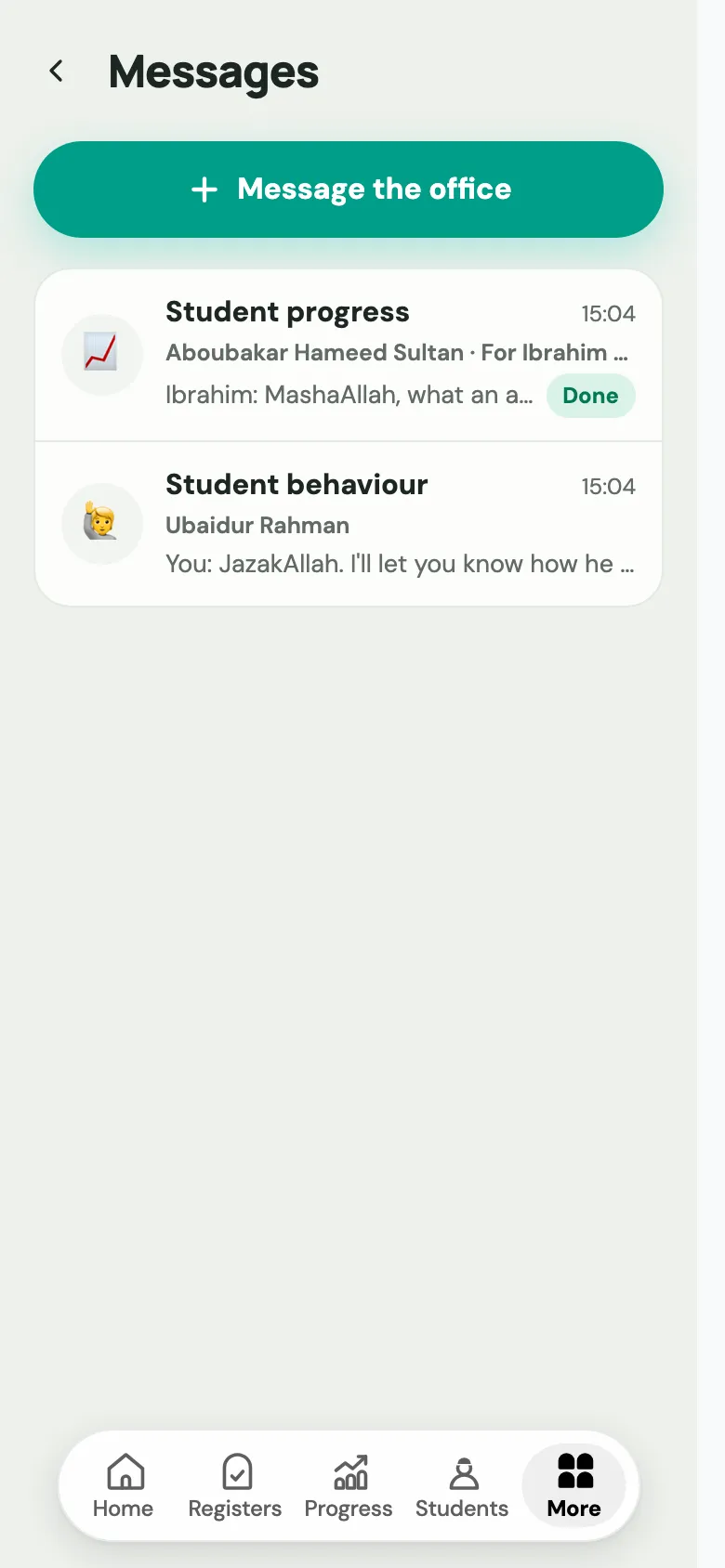
-
In the teacher app, open Messages. You’ll find it on the Messages card on Home, or under More. Then choose Message the office.
-
Under What’s it about?, pick one:
- Student behaviour: how a student is behaving.
- Student progress: how a student is getting on.
- I won’t be in: time off, saying when and why.
- Something else: anything else for the office.
-
For behaviour or progress, choose the student or students it’s about. You can choose any of the students you teach.
-
Write your message.
-
Under For, choose Everyone in the office, or one admin or head teacher. That person gets the notification, but the rest of the office can still read it and reply.
-
Choose Send.
Telling the office you won’t be in
Section titled “Telling the office you won’t be in”Choose I won’t be in, then:
- When: Today, Tomorrow, or choose dates (first and last day).
- Only part of the day? Add a note such as “Leaving at 6pm”.
- Classes you’ll miss: Labbaik ticks the classes that meet on those days. Untick any that are covered.
- Reason (optional): Unwell, Appointment, Family, Travel or holiday, Religious occasion, or Other.
- Anything the office should know, such as “Cover work is on my desk”.
The whole office is told. When someone acknowledges it, you get a notification that they’ve seen it. If your plans change, open the conversation and choose I’m coming in after all.
Let Labbaik fill it in
Section titled “Let Labbaik fill it in”At the top of a new message, under Just say it, type a note in your own words, such as “Can’t come in Tuesday, hospital appointment. Cover work is on my desk.”. Then choose Fill it in for me. Labbaik picks the topic, the students and the dates for you. You see everything before anything is sent, so check it and tap Send.
For the office: the shared inbox
Section titled “For the office: the shared inbox”Every admin and head teacher shares one inbox.
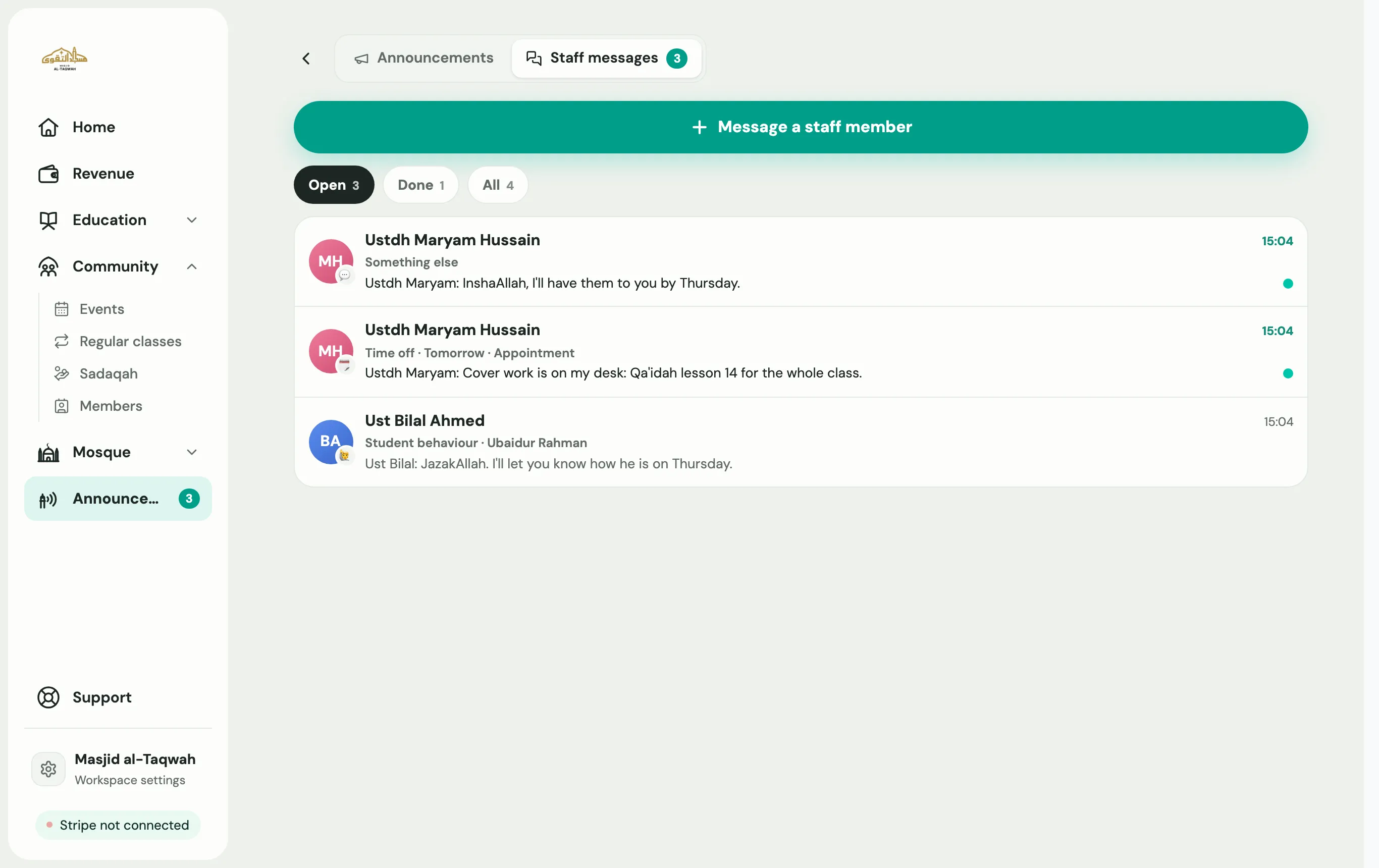
- Admins: go to Announcements in the sidebar and use the Announcements | Staff messages switch at the top. The sidebar shows how many messages are unread. The list has Open, Done and All.
- Head teachers who use the teacher app: Messages has an Inbox tab for staff messages, and a Mine tab for your own.
Reply and close a conversation
Section titled “Reply and close a conversation”Open a conversation to read it and reply. Anyone in the office can reply.
When it’s dealt with, open the ⋮ menu and choose Mark done. It moves to Done. If anyone replies, it reopens on its own, or you can choose Reopen.
Under your last message you’ll see Seen by the teacher, with the time, or Not seen yet.
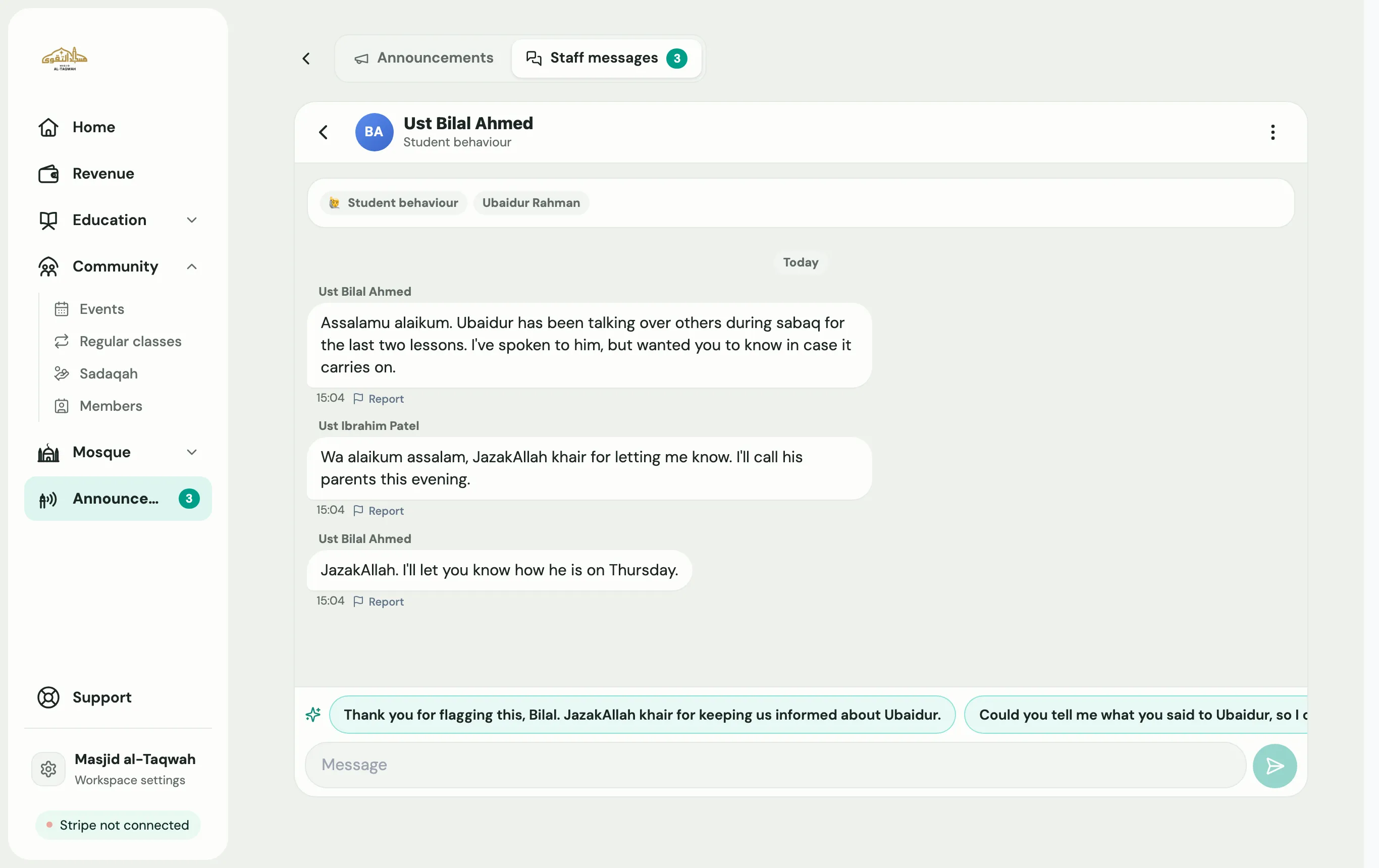
Teachers see the same conversation in their app, with the office’s replies, who it was for, and when it was marked done:
Time off
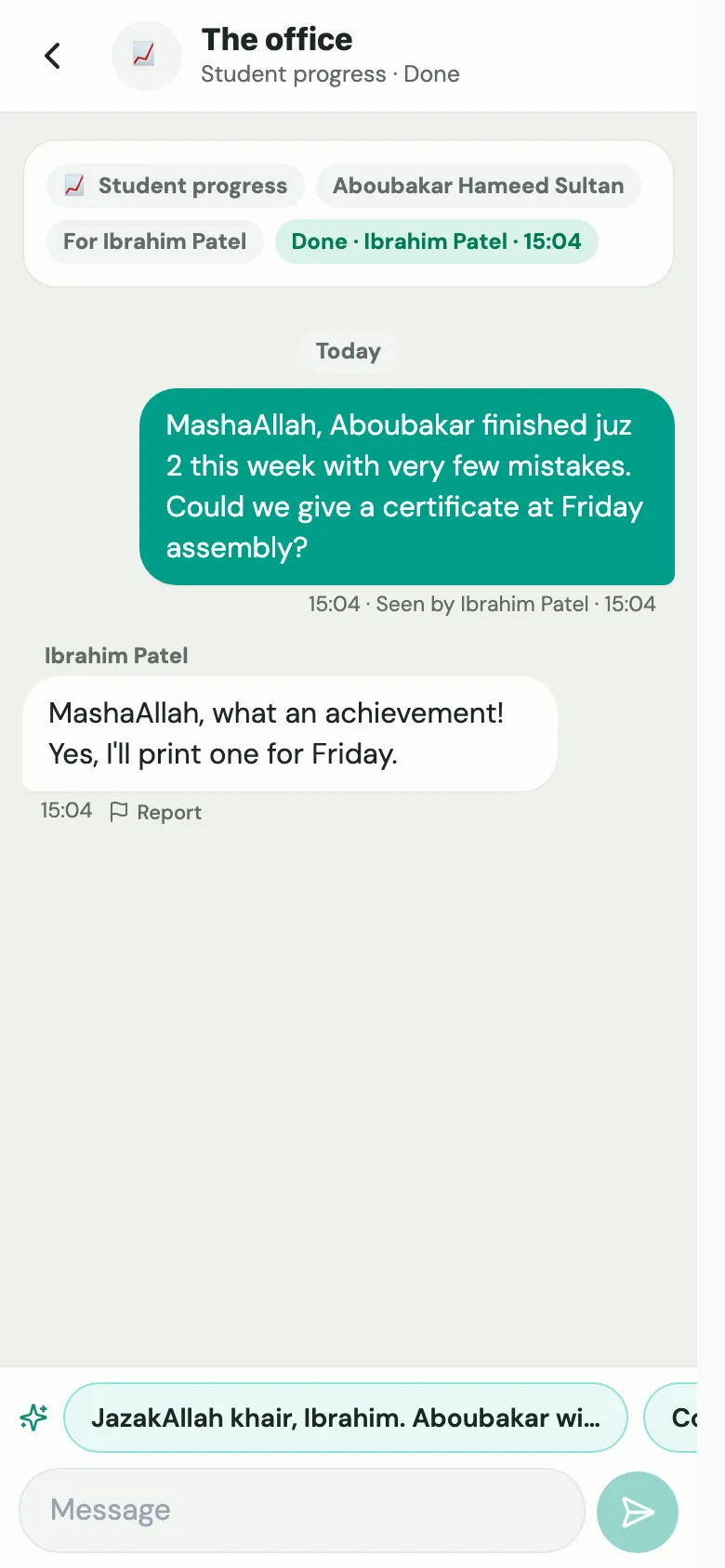
Section titled “Time off”When a teacher says they won’t be in, choose Acknowledge so they know the office has seen it. Upcoming time off also shows on the Staff away card on Home, so you can plan cover.
Start a conversation with a teacher
Section titled “Start a conversation with a teacher”- In the inbox, choose Message a staff member.
- Or go to Education → Staff, open a staff member, and choose Message with their name.
When you send a teacher a task, they can tap Mark as done to let you know it’s finished.
If you start an announcement to staff and pick just one teacher, Labbaik offers Send a message instead. A staff message is private, and they can reply.
Helpful extras
Section titled “Helpful extras”These AI helpers are optional, and never send anything by themselves:
- Suggested replies: when it’s your turn to reply, three short replies appear above the box. Tap one to edit it or send it.
- Tidy up: fixes spelling, grammar and tone, and keeps every fact and the language you wrote in. Choose Undo to get your original back.
If AI help is switched off in the app’s settings, messaging works exactly the same without these.
Notifications
Section titled “Notifications”Staff get an app notification when there’s a new message or reply, when time off is acknowledged, and when a teacher says they’re coming in after all. Each person can turn these off under the Staff messages switch in their notification settings.