
Clocking in with the QR code
Put a QR poster up in your classroom or office. Staff scan it with their phone when they start, and again when they finish. For staff paid by the hour from their scans, those hours go straight into staff pay.
For admins: print the poster
Section titled “For admins: print the poster”-
Go to Education → Staff and choose Attendance QR.
-
Choose General, one poster for the whole building, or By class, a poster for one class, and pick the class.
-
Choose Download, then Download poster PDF for an A4 poster to print, or Download QR for just the code.
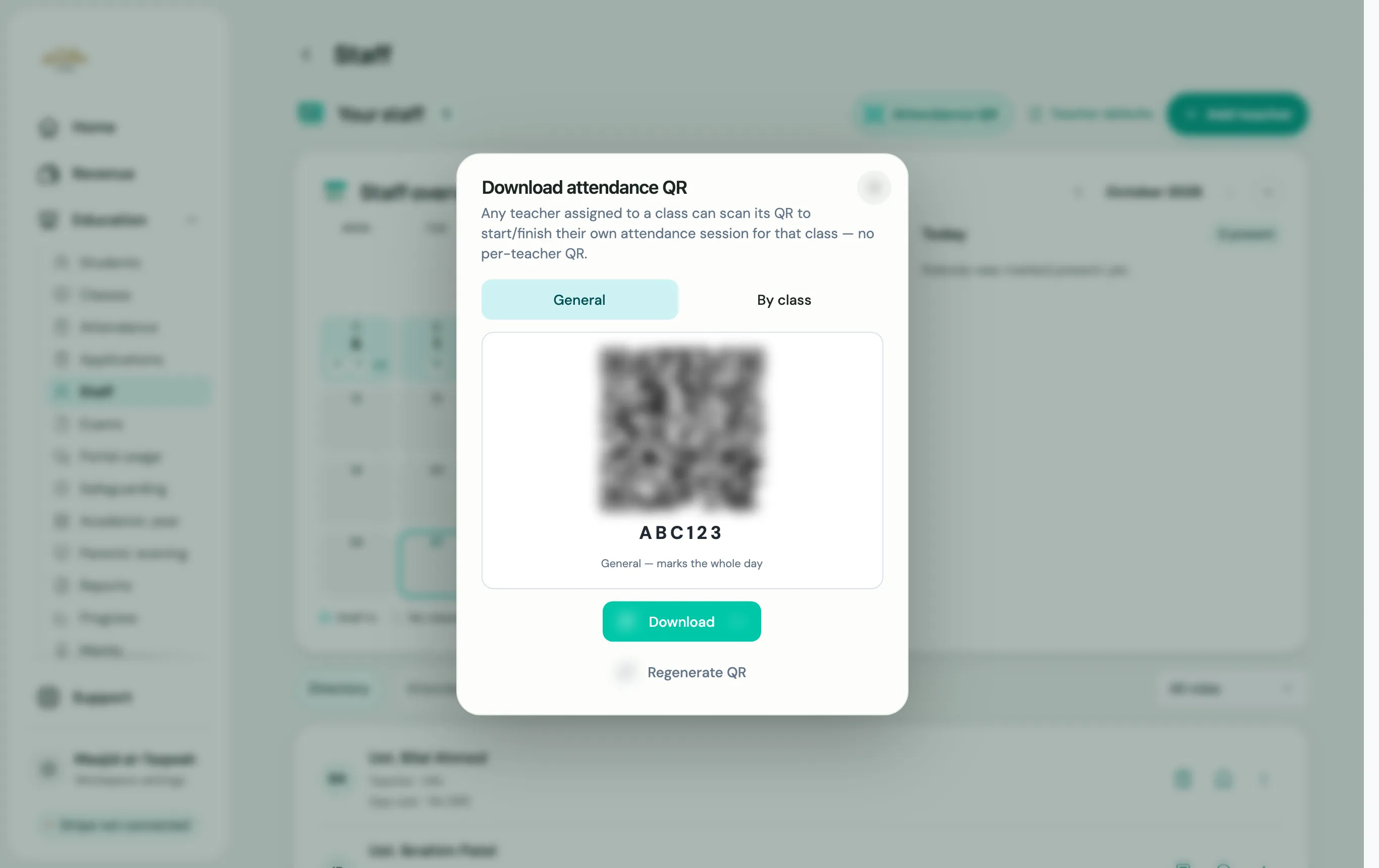
The poster says Teachers: scan to mark attendance and shows a short code for anyone whose camera won’t scan.
If a poster goes missing or someone shares it, choose Regenerate QR. The old poster and code stop working straight away, so print the new one.
For staff: clock in and out
Section titled “For staff: clock in and out”-
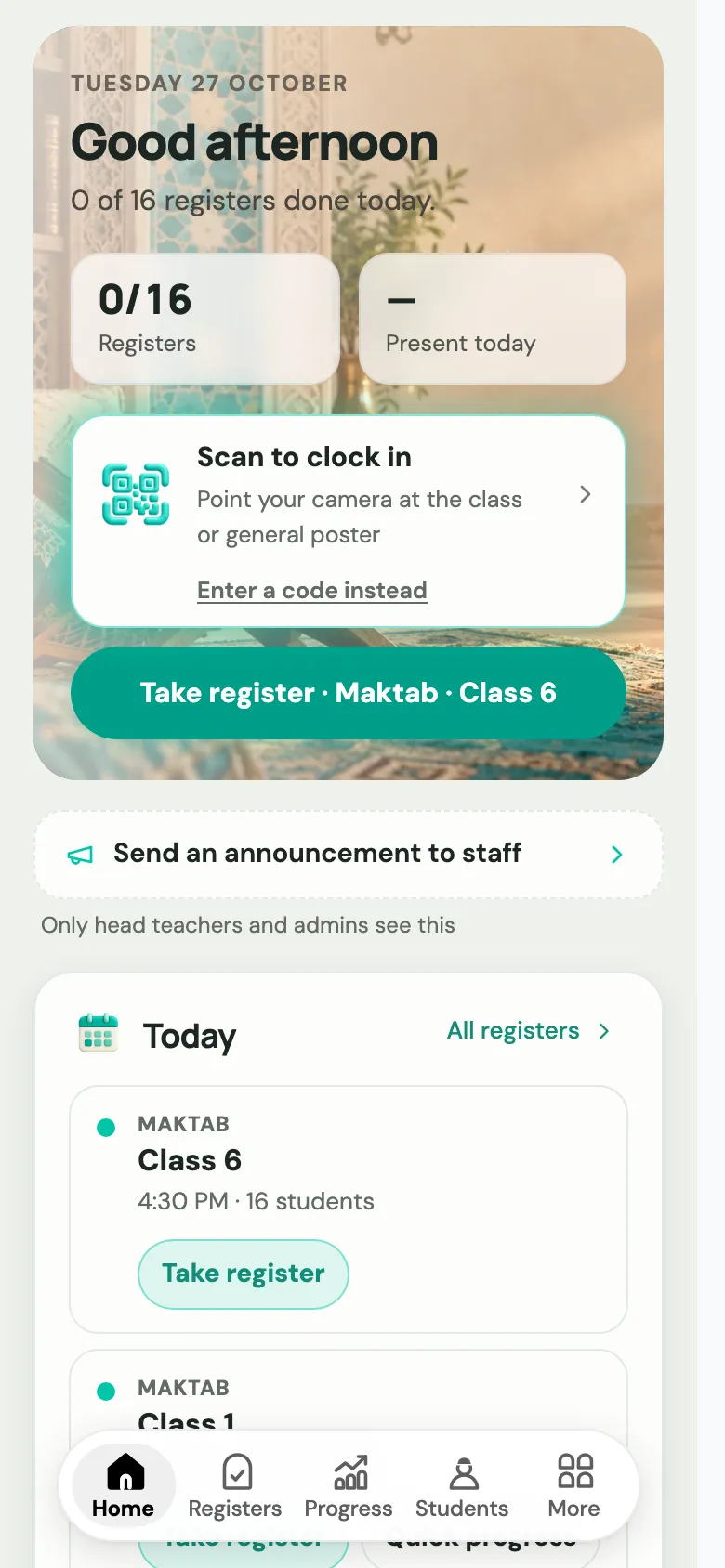
On your teacher portal Home, tap Scan to clock in and point your camera at the poster. (Or tap Enter a code instead and type the short code.)
-
You’ll see Started. The tile on Home now says You’re clocked in. (If you scan with your phone’s own camera instead, a page opens saying You’re in.)
-
When you finish, scan the same poster again and choose Yes, finish.
Forgot to scan when you left?
Section titled “Forgot to scan when you left?”On Home, choose Forgot to scan finish?, enter your Finish time and choose Submit. It’s sent to your admin to approve, and Home shows that it’s waiting for approval.
Pay from scanned hours
Section titled “Pay from scanned hours”On a staff member’s page, switch on Scans a QR code to pay them for the hours they scan. Switch it off for fixed pay. See Staff pay.
Who was in
Section titled “Who was in”- Staff overview, at the top of the Staff page, is a calendar of who was in each day, with their daily logs.
- The Attendance tab shows each person’s attendance for the month. Tap someone to see their calendar, and tap a day to change it to Present, Absent, Sick, Holiday or Outage, or add a note. Sick days, holidays and outages don’t count against them.