
Your organisation's details
Your organisation’s details appear on registration forms, receipts, emails and the parent portal, so it’s worth getting them right early.
Find your settings
Section titled “Find your settings”Click your organisation’s name at the bottom of the sidebar, then Account & settings. On a phone, open Account.
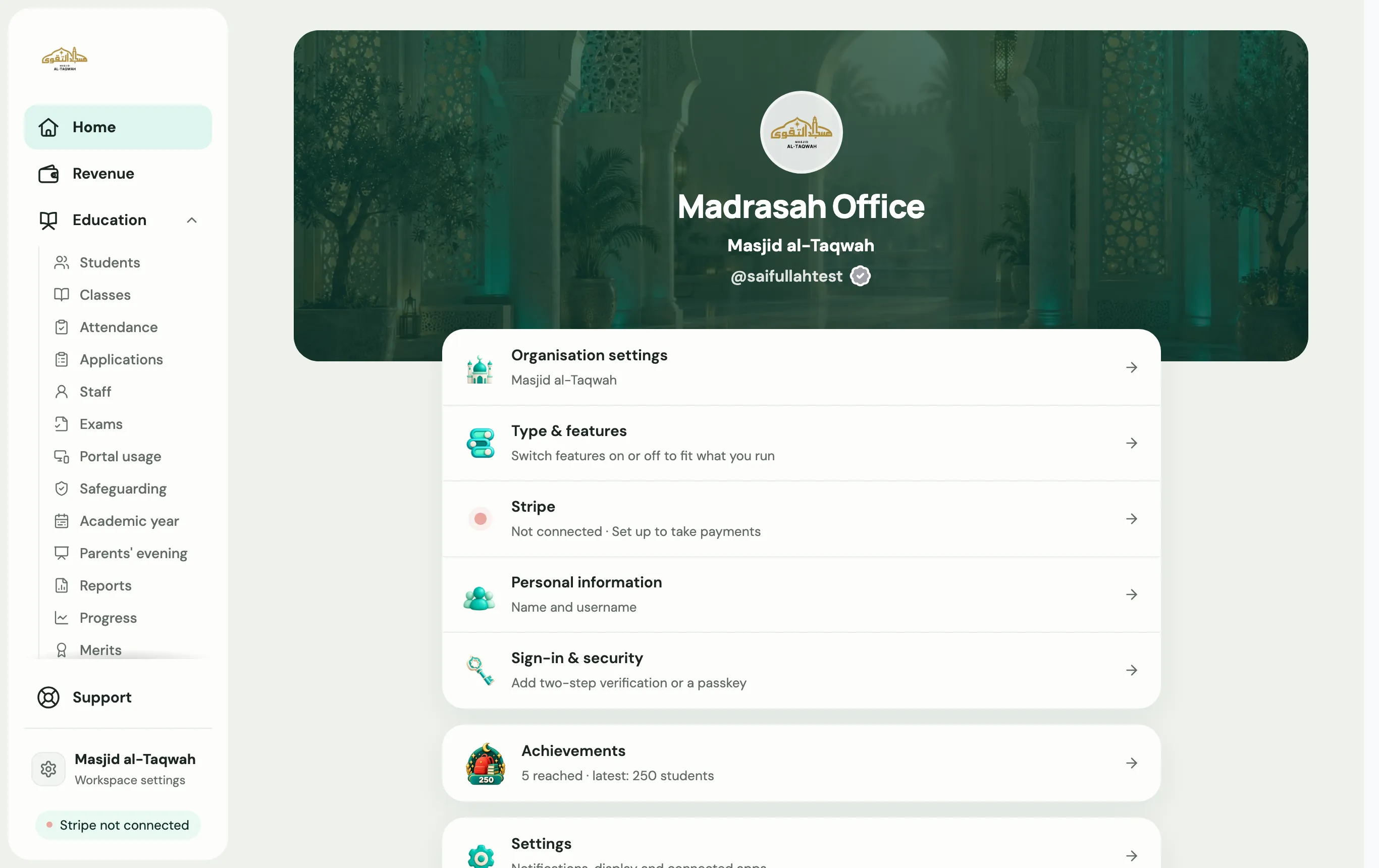
| Row | What’s there |
|---|---|
| Organisation settings | Your name, logo, address, contact details and terms. See below. |
| Type & features | Your organisation type, and which tools are switched on. |
| Stripe | Taking payments. See Connect Stripe. |
| Personal information | Your own name and mobile number. To change your email, contact support. |
| Sign-in & security | Two-step verification and passkeys. |
| Settings | Notifications, display, and Connected apps (Zoom, Google Drive and Dropbox). |
| Developers | Put prayer times, forms and more on your website. |
Organisation settings
Section titled “Organisation settings”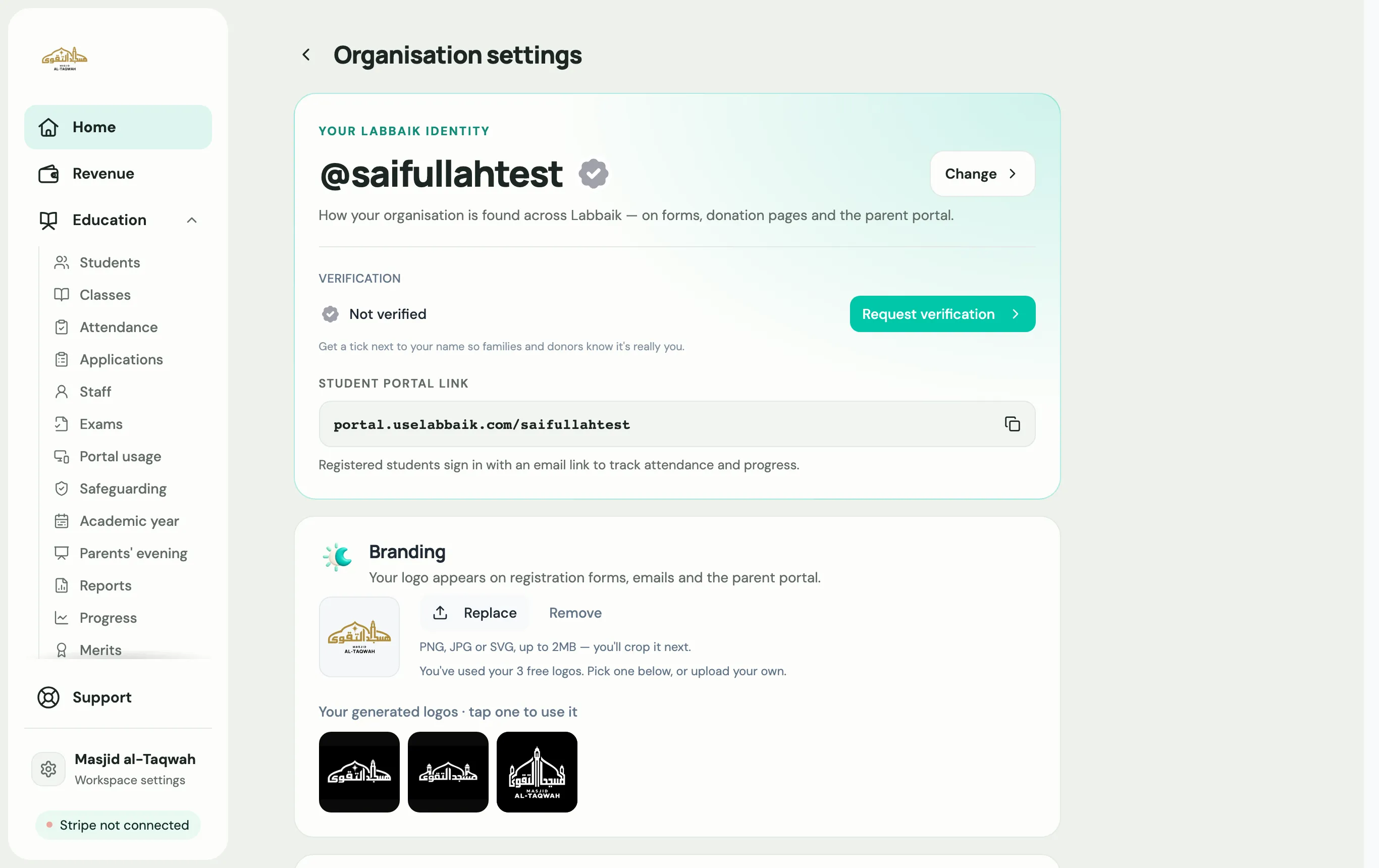
Changes here save on their own a moment after you stop typing. You’ll see Saved.
- Branding: Upload logo (PNG, JPG or SVG, up to 2MB; you can crop it next). No logo yet? Choose Generate one for free. Your logo appears on registration forms, emails and the parent portal.
- Organisation details: your Organisation name, Website and Address. These are used on receipts, public forms and email footers.
- Support contact: the Support email and Support phone families should use.
- Legal & policies: see below.
Your username
Section titled “Your username”Your username is the short name in every link you share, such as portal.uselabbaik.com/yourname and apply.uselabbaik.com/yourname. Only admins can change it.
-
In Organisation settings, under Your Labbaik identity, choose Change.
-
Type the New username: 3 to 30 lowercase letters and numbers, starting with a letter.
-
When it says Available, choose Save username.
Terms and conditions
Section titled “Terms and conditions”Under Legal & policies, write Your terms & conditions, such as your fees, behaviour and pick-up rules. Use Preview to see how families will see it, and Make it look professional to tidy the wording. Then choose Save terms. Terms don’t save on their own; until you save, families see the last saved version.
Families agree to your terms when they apply or register. Families already on Labbaik are asked to agree the next time they open the parent portal. You can see who has agreed on each student passport.
You can also add links to a Terms & conditions URL and a Privacy policy URL on your own website.
Type & features
Section titled “Type & features”Choose your Organisation type (Masjid, Islamic education, or Charity & community), and switch tools such as Donations, Prayer times and Running the building on or off. Choose Save changes. Nothing is ever deleted when you switch something off; it’s just hidden.