
Take a register
Teachers usually take the register on their phone, in the teacher app. Admins can take it from the dashboard too.
-
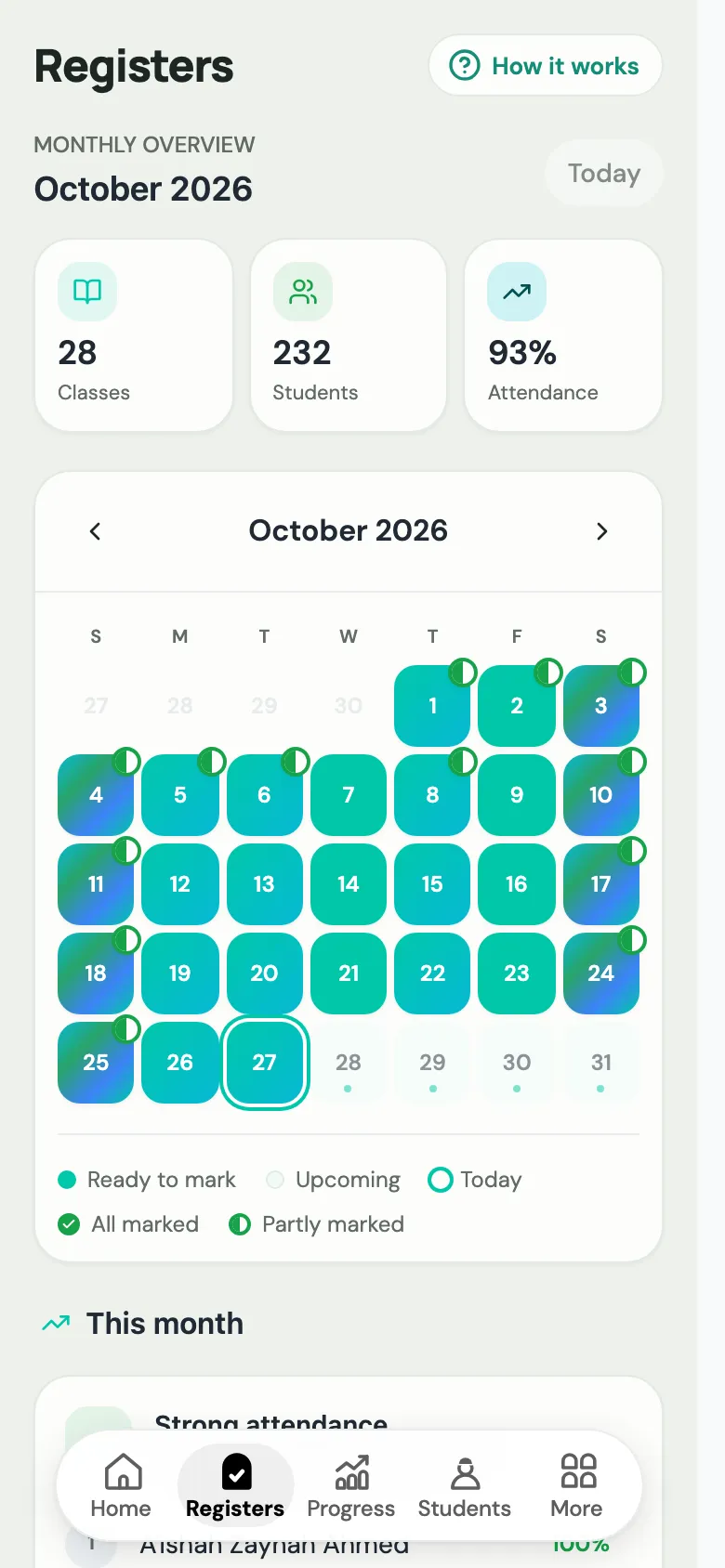
Open app.uselabbaik.com/teacher and tap Registers.
-
Pick the class.
-
Each student appears as a card:
- Swipe right for present.
- Swipe left for absent.
- Tap Mark late if they arrived late.
-
Tap Save register.
-
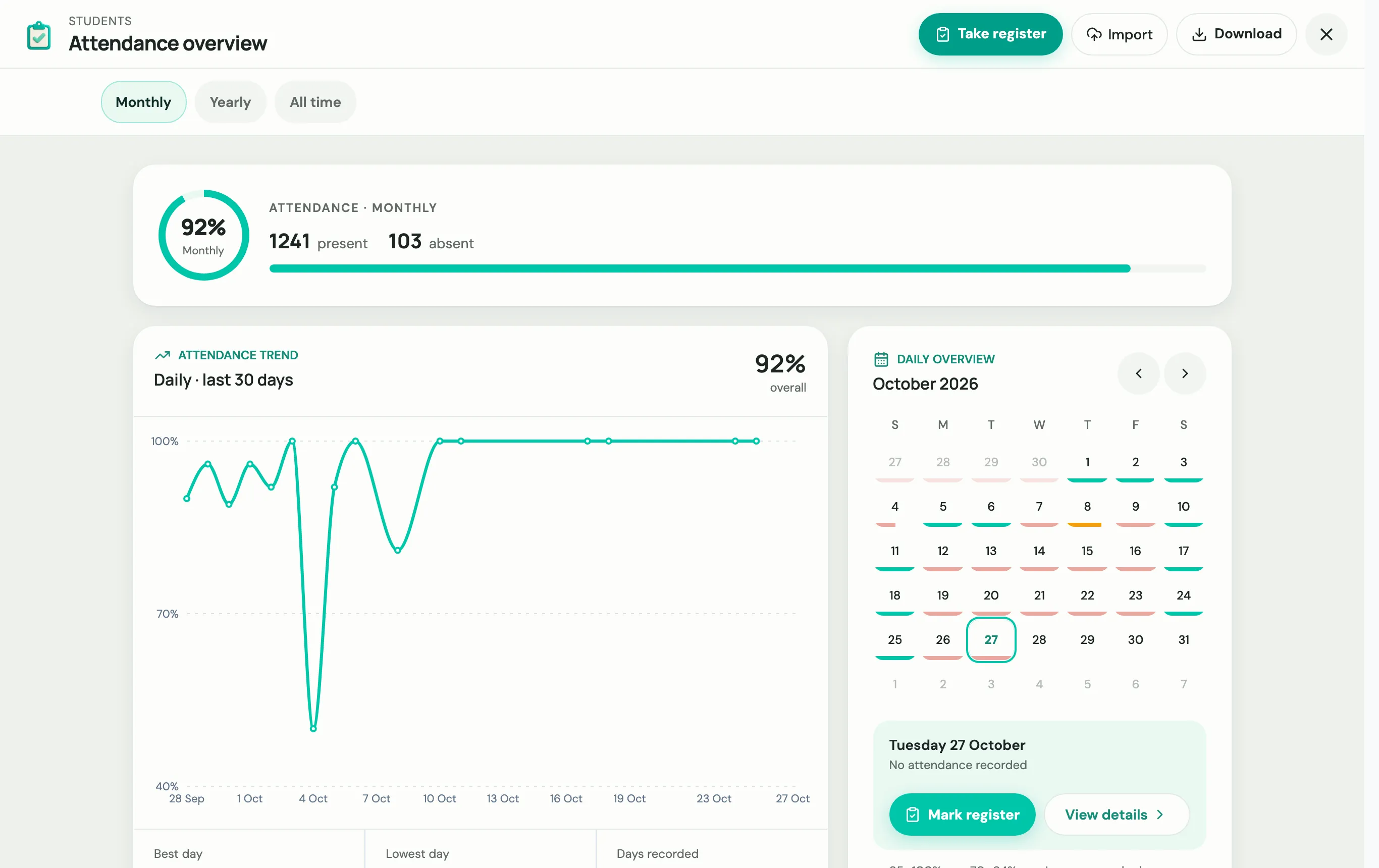
Go to Education → Attendance. The Attendance overview opens, showing the attendance trend and a calendar of the month.
-
Choose Take register, pick the class under Which class are you taking the register for?, then choose Take the register.
-
Choose Mark everyone present, then change anyone who’s absent or late.
-
Choose Continue, then Save register.
Log progress straight after
Section titled “Log progress straight after”After Register saved, Labbaik asks Log progress now?. Say yes to go through the students who were present while the lesson is fresh. See Log progress.
Absences
Section titled “Absences”When a student is marked absent or late on today’s register, parents who have signed in to the parent portal get an app notification about 15 minutes later. That leaves time to fix a mistake first. Nothing is sent if the parent already reported the absence themselves.
Parents can report an absence ahead of time from the portal. Those reports show on the Absence reports card: on Home for admins and head teachers, and on the teacher app’s Home for the class teacher.
Other ways to record attendance
Section titled “Other ways to record attendance”- Staff check-in: display the code from Education → Staff → Attendance QR, and teachers tap Scan to clock in on their Home screen. This can feed hours into staff pay.