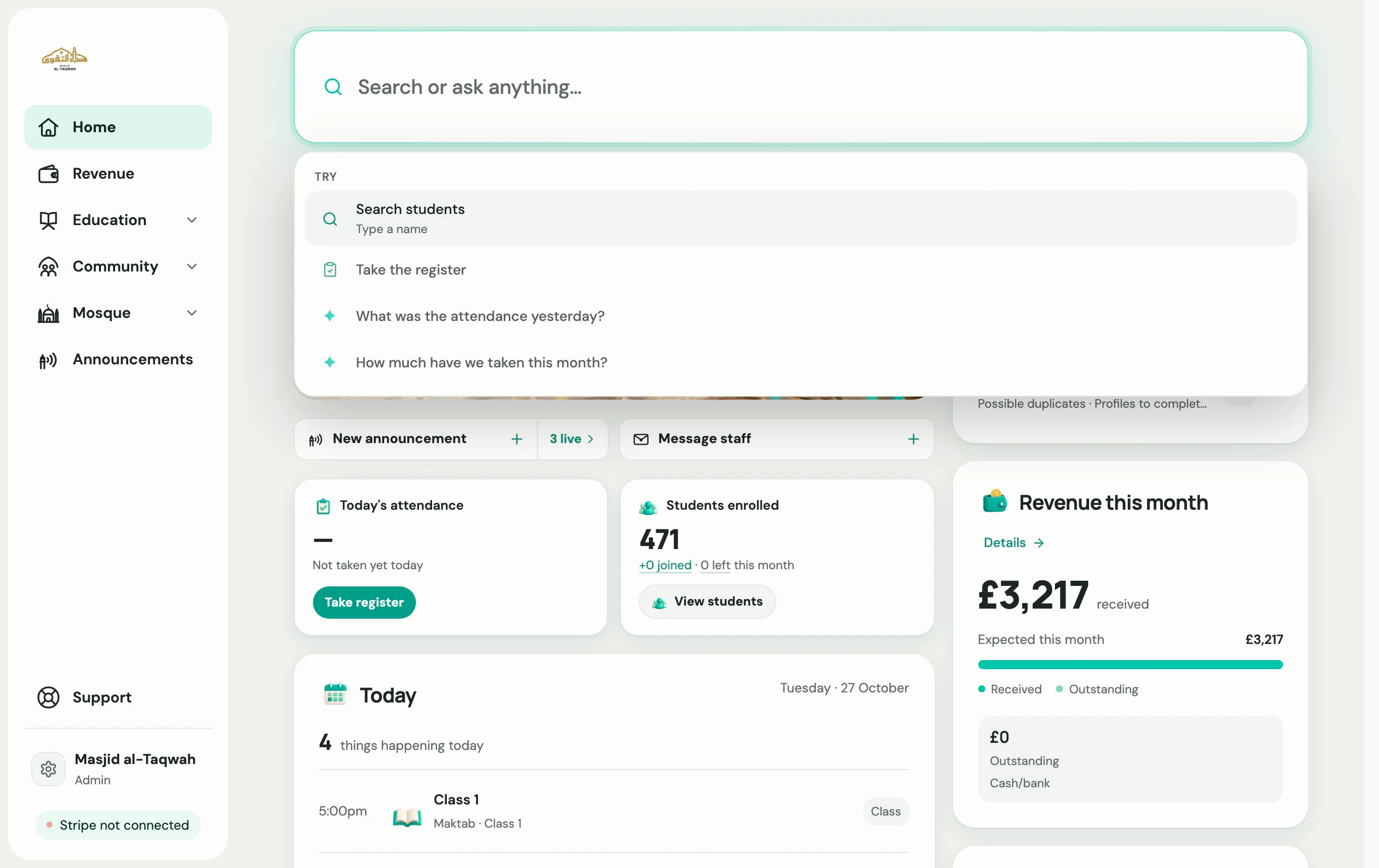
Finding your way around
The four sections
Section titled “The four sections”The sidebar groups every tool into four sections.
| Section | What’s in it |
|---|---|
| Home | Today at a glance, your setup guide, absence reports and anything that needs you. |
| Education | Students, Classes, Attendance, Applications, Staff, Exams, Academic year, Parents’ evening and Safeguarding. Charities and community groups see this section as People. |
| Community | Announcements, Events, Regular classes, Sadaqah and Members. |
| Mosque | Prayer times, Prayer board, Our team, Mosque care, Certificates, Nikah and Shahadah. Organisations that aren’t masjids see this as Tools. |
Revenue, Announcements and Support sit below the sections, so you can reach them from anywhere. The organisation menu at the top holds Account, light and dark mode, and sign out.
On a phone, the sections become tabs along the bottom of the screen, with a Quick actions bar for everyday jobs.
Simple or Advanced view
Section titled “Simple or Advanced view”The organisation menu has a Dashboard view switch. It changes how many figures Home shows: Simple keeps it short and Advanced shows more. Your tools stay the same either way.
Ask Labbaik
Section titled “Ask Labbaik”Press ⌘ K on a Mac, or Ctrl K on Windows, to open the command bar. Type into Search or ask anything…:
- To find something, type the name of a student, class or page.
- To ask a question, type it in plain words, such as “who was absent last Friday?”, then choose the Ask “…” item marked Ask Labbaik.