
Two-step verification and passkeys
Labbaik signs you in with a code sent to your email. If someone got into your email, they could get into Labbaik too. Two extra protections stop that:
- Two-step verification: after signing in, you also enter a code from an authenticator app on your phone.
- Passkeys: sign in with your face, fingerprint or screen lock, with no email code at all.
These are for staff: admins and teachers. Parents don’t need them.
Where to find them
Section titled “Where to find them”- Admins: Account → Sign-in & security.
- Teachers: in the teacher portal’s Settings, under Two-step verification and Passkeys.
It’s also the Secure your account step on the Get set up guide.
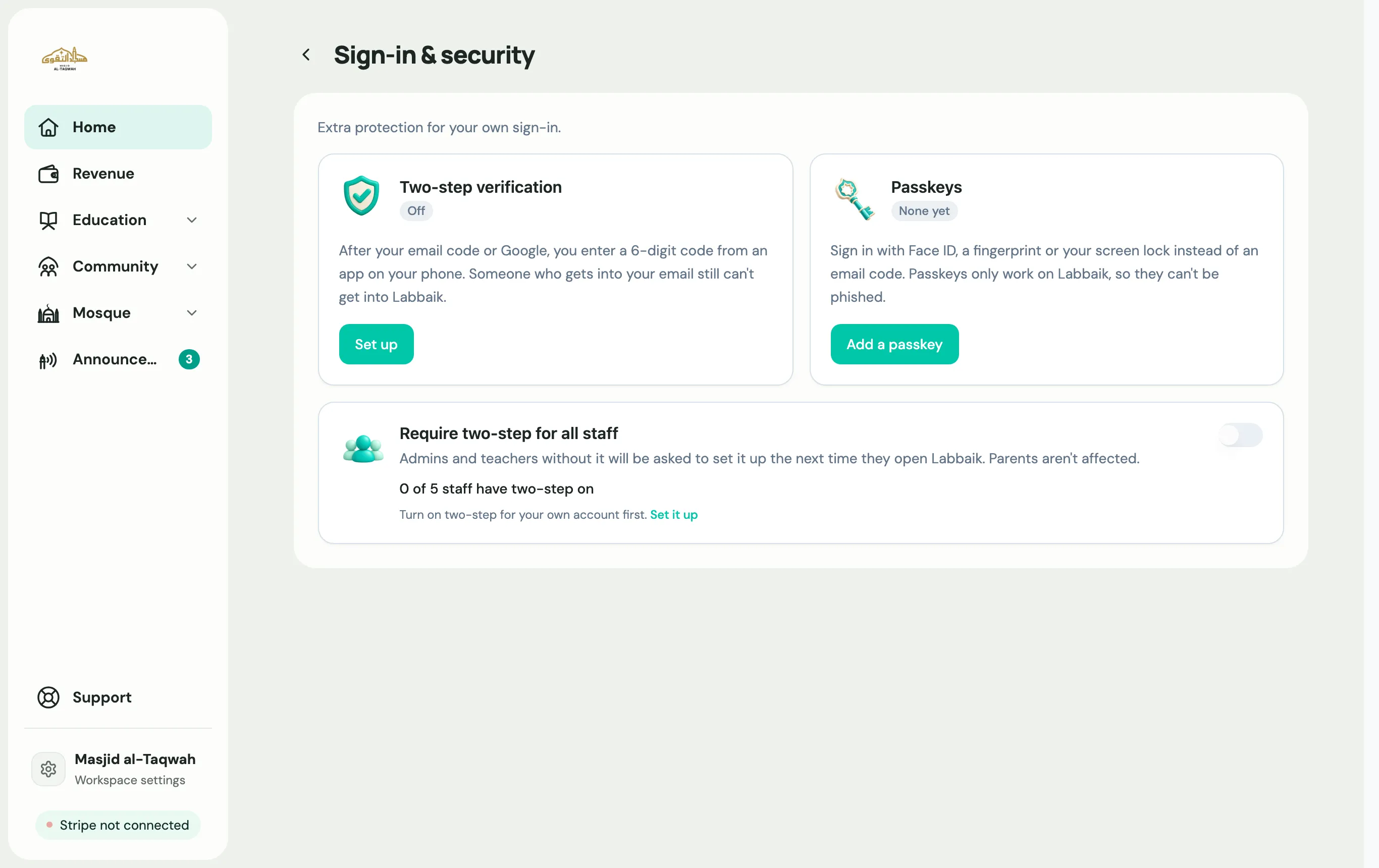
Turn on two-step verification
Section titled “Turn on two-step verification”You’ll need an authenticator app on your phone, such as Google Authenticator, Microsoft Authenticator or Authy. Any authenticator app works.
-
Next to Two-step verification, choose Set up.
-
Scan with your app: open your authenticator app, add an account, and scan the QR code. On a phone, choose Open in app instead. If you can’t scan, choose Can’t scan? Show the key and Copy key to paste it into the app.
-
Enter the 6-digit code your app now shows for Labbaik, and choose Turn on.
You’ll see Two-step verification is on, and Labbaik emails you to confirm. You’re signed out on your other devices, and need to sign in again there with a code.
Signing in with two-step on
Section titled “Signing in with two-step on”Sign in as usual, by email code, Google or passkey. Labbaik then asks you to Enter your authenticator code. Open the app and type the 6-digit code for Labbaik.
Lost your phone?
Section titled “Lost your phone?”There are no backup codes. Email support@uselabbaik.com from the email address on your account, and we’ll turn two-step off so you can sign in and set it up again on your new phone. The sign-in screen also shows a Lost your phone? link.
Turn it off
Section titled “Turn it off”Choose Manage next to Two-step verification, then Turn off and Yes, turn off. You’ll get a confirmation email.
Add a passkey
Section titled “Add a passkey”A passkey lets you sign in with your face, fingerprint or screen lock, instead of waiting for an email code. It’s saved on your phone, computer or password manager.
-
Next to Passkeys, choose Add a passkey.
-
Your device asks you to confirm with your face, fingerprint or screen lock. Labbaik shows Waiting for your device… while it does.
-
You’ll see Passkey added, and Labbaik emails you to confirm.
Add one passkey on each device you use, such as your phone and your laptop. Each passkey shows the date it was Added and last used. To remove one, choose Remove, then Yes, remove. You can still sign in with your email code afterwards.
Signing in with a passkey
Section titled “Signing in with a passkey”-
Go to app.uselabbaik.com, on the Teachers & admins tab.
-
Under Or continue with, choose Passkey.
-
Confirm with your face, fingerprint or screen lock. You don’t need to type your email.
If you also have two-step verification on, you’ll still enter your authenticator code after the passkey.
Require two-step for all staff (admins)
Section titled “Require two-step for all staff (admins)”You can make two-step verification compulsory for everyone on your staff.
-
Turn on two-step verification for your own account first.
-
On Account → Sign-in & security, switch on Require two-step for all staff.
Admins and teachers who haven’t set it up are asked to the next time they open Labbaik, and can’t carry on until they do. The page shows how many of your staff have two-step on. Parents aren’t affected.