
Term reports
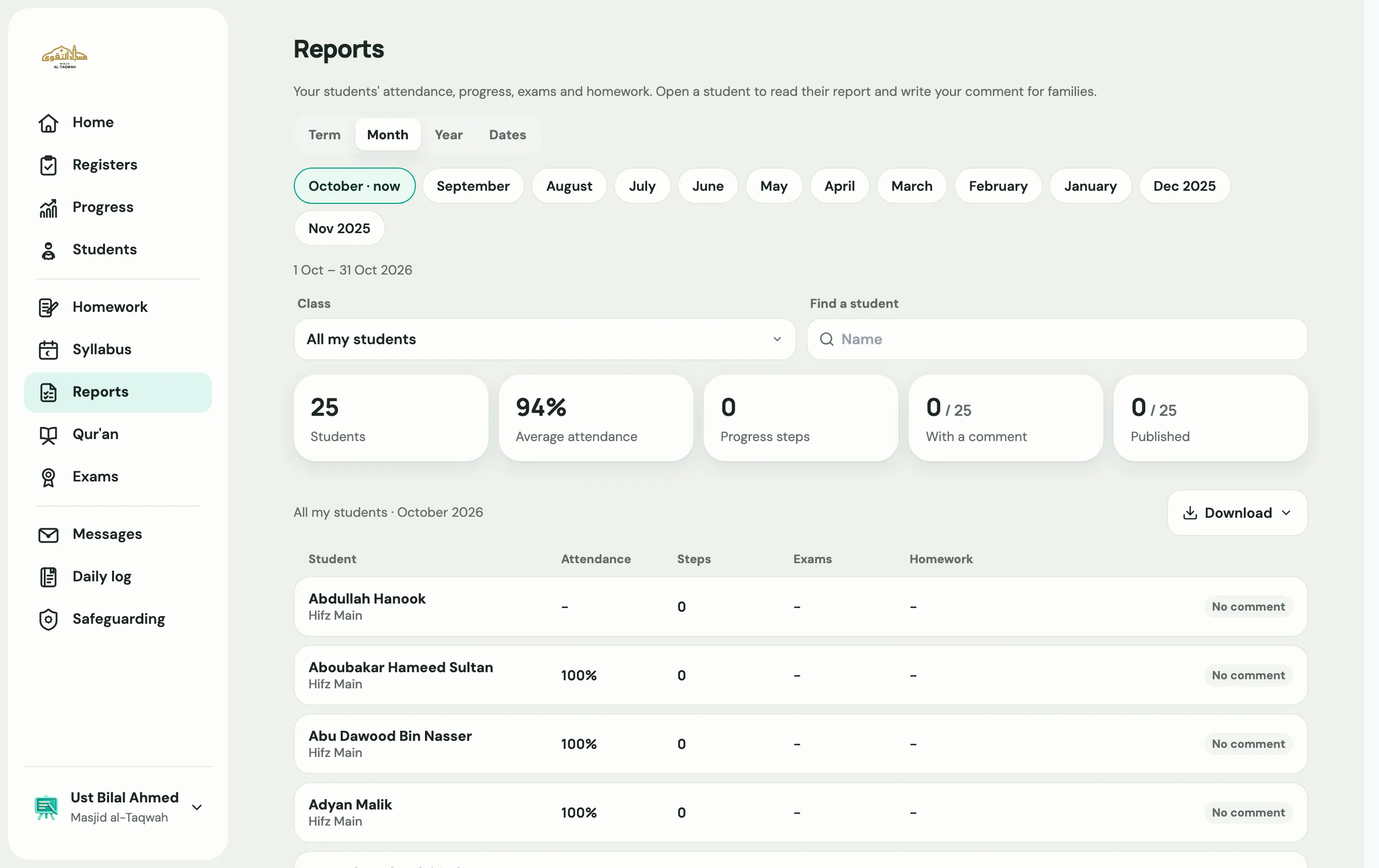
A report gives each family a picture of their child’s term: attendance, progress, exams, homework, any khatams and, if you choose, fees. Labbaik fills most of it in for you. You add a comment from the teacher, then publish it to families.
Who does what
Section titled “Who does what”- Admins and head teachers can see every student’s report, add comments, and publish.
- Teachers see their own students, add comments and download reports, but can’t publish. They find it in the teacher portal under More → Reports.
What’s filled in for you
Section titled “What’s filled in for you”You don’t need to type any of this. Labbaik works it out from what’s already in Labbaik for the dates you choose:
- Attendance: the percentage, a month-by-month breakdown, and the class average. Late counts as present, and excused absences don’t count against them.
- Progress: how many steps forward they made, and where they are now.
- Teacher notes families can already see on their Progress page.
- Exams sat in that period, and homework families answered.
- Khatams completed.
- Fees paid or owed, only if you switch on Show fees on families’ reports. Only the parent who pays sees them.
Write and publish reports
Section titled “Write and publish reports”-
Go to Education → Reports.
-
Pick the period: Term, Month, Year or Dates. Terms come from your academic year; if you haven’t added term dates, Labbaik estimates Autumn, Spring and Summer.
-
Narrow the list with Programme, Class or Find a student if you like.
-
Tap a student to open their report.
-
Write the Teacher’s comment and choose Save comment. Families see this at the top of the report.
-
When the comments are done, choose Publish to families. Labbaik tells you how many students still have no comment.
-
Choose how to tell families: App notification and Email are ticked; tick WhatsApp as well if you like. Siblings are told together, once.
-
Choose Publish N.
To publish just one student, open their report and choose Publish to family. Save the comment first. Publishing one student tells the family by app notification and email; to send WhatsApp too, use Publish to families.
What families see
Section titled “What families see”The report appears in the parent portal, with a New report card on Home and a Reports page where they can choose a report and Download PDF. If you ticked WhatsApp, they also get a message with a Read the report button.
To take a report back out of the portal, open it and choose Hide from family.
Downloading and printing
Section titled “Downloading and printing”- Download PDF on one student’s report.
- Download on the list gives Reports for families (PDF), a Class report with overview (PDF) for staff, or Everything (Excel).
A reporting rhythm
Section titled “A reporting rhythm”Under Education → Academic year → Report cards, choose how often you report: Weekly, Monthly, Termly, Yearly, or We don’t send reports. When reports are due, Home shows a reminder with a Review button.
Parents’ evening slideshows
Section titled “Parents’ evening slideshows”A term report is a written report families can keep. A parents’ evening term wrapped is something different: a short slideshow you show families on the evening. You can use both.