
Class times and timetable changes
Every class has its usual times: the days and time it normally meets. When those change for a while, such as shorter evening classes in Ramadan or a different day during exams, add a timetable change. It replaces the usual times between two dates, then everything goes back to normal by itself.
Usual times
Section titled “Usual times”You set these when you add a programme or class. To change them later:
-
Go to Education → Classes and open the programme.
-
Choose [Programme] settings.
-
Under Schedule, set the Class days, Start time and End time.
-
Choose Save changes.
-
Open the programme, then the menu on the class’s row, and choose Settings.
-
Open Schedule and choose Same as programme, or Different time for this group.
-
Set the Schedule days, Start time and Duration (mins).
-
Choose Save changes.
Add a timetable change
Section titled “Add a timetable change”-
Go to Education → Academic year and find Timetable changes. (You can also open a programme and choose Timetable changes.)
-
Choose Ramadan for Ramadan, or Add change for anything else.
-
Give it a Name, such as “Ramadan timetable”, and set the First day and Last day.
-
Which programmes? Pick the programmes, and for each one All classes or Pick classes.
-
Days: choose the days classes will meet during the change.
-
Times: choose one:
- Same as usual: each class keeps its own time; only the days change.
- Earlier / later: move every class by whole hours, up to 6.
- One time for all: every class Starts and Ends at the same time.
- Each class: a start and end time for each class.
-
Add a Note for parents if you like, such as “Classes finish before iftar.”
-
Choose Save.
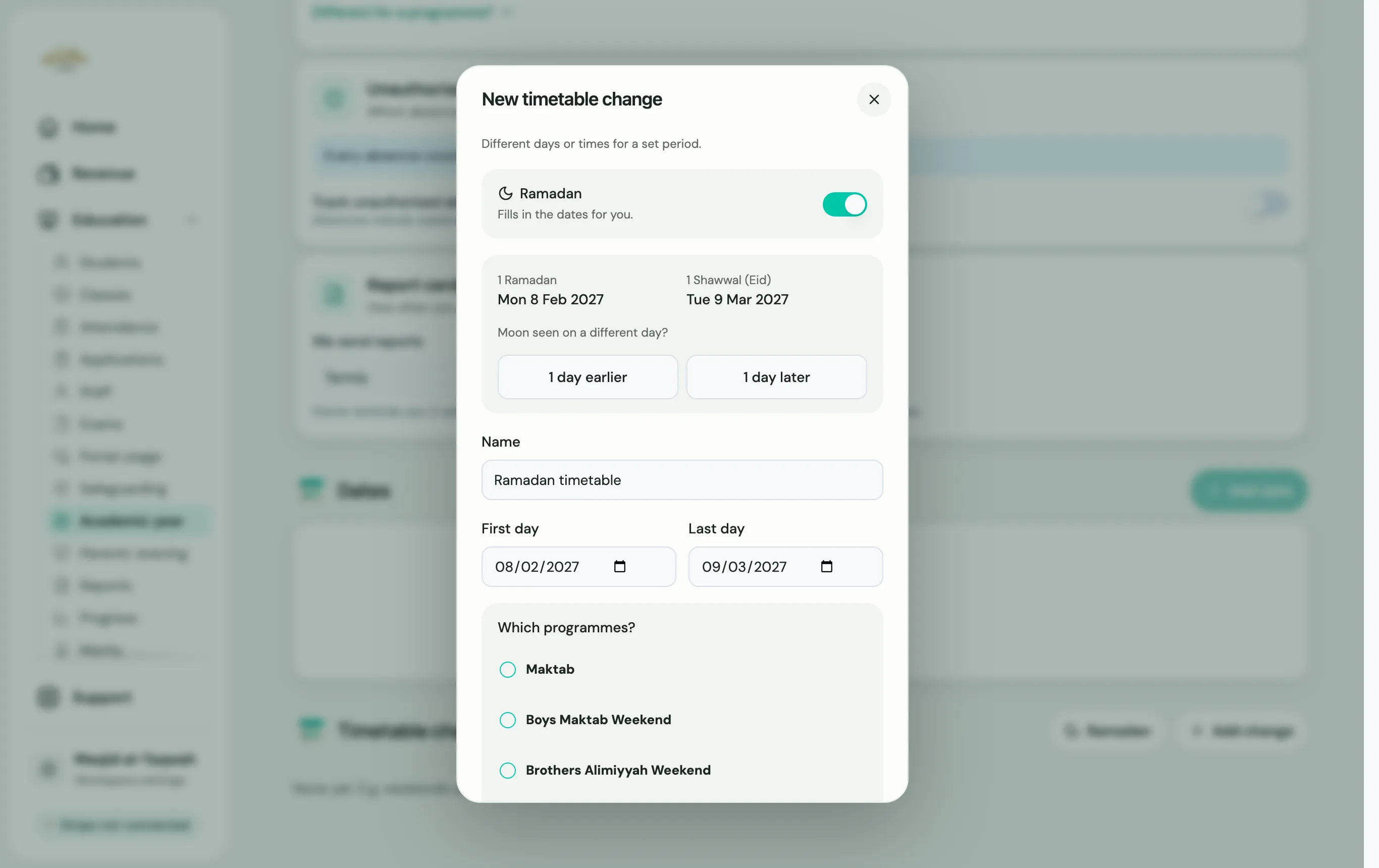
Ramadan made easy
Section titled “Ramadan made easy”Choose Ramadan and Labbaik fills in the dates and a name for you: from 1 Ramadan to 1 Shawwal (Eid). If the moon is seen on a different day, use 1 day earlier or 1 day later (up to two days either way).
Cancel classes
Section titled “Cancel classes”- For a day or a holiday: add a date in Academic year with Classes closed switched on. See Set your academic year.
- Only some classes, for a short time: add a timetable change for those classes with no days ticked. No days means no classes.
What changes when you save
Section titled “What changes when you save”- Registers and today’s classes follow the new days and times, for admins and teachers.
- Families see a card on the parent portal’s Home from two weeks before the change until its last day, with the dates, new times and your note.
- No message is sent to families when you save. If it’s a big change, also send an announcement.
- Your website’s calendar (if you’ve added it) shows the change too.
Seeing and editing changes
Section titled “Seeing and editing changes”The list shows each change as In force, Upcoming or Finished. Use the pencil to edit one, or the bin to delete it. If a change covers several programmes, edit its dates from Academic year.