
Student and family passports
Every student has a Student passport: one card with their details, progress, attendance, payments and family. Siblings share a Family passport, which brings the whole family’s children, fees and contacts together.
The student passport
Section titled “The student passport”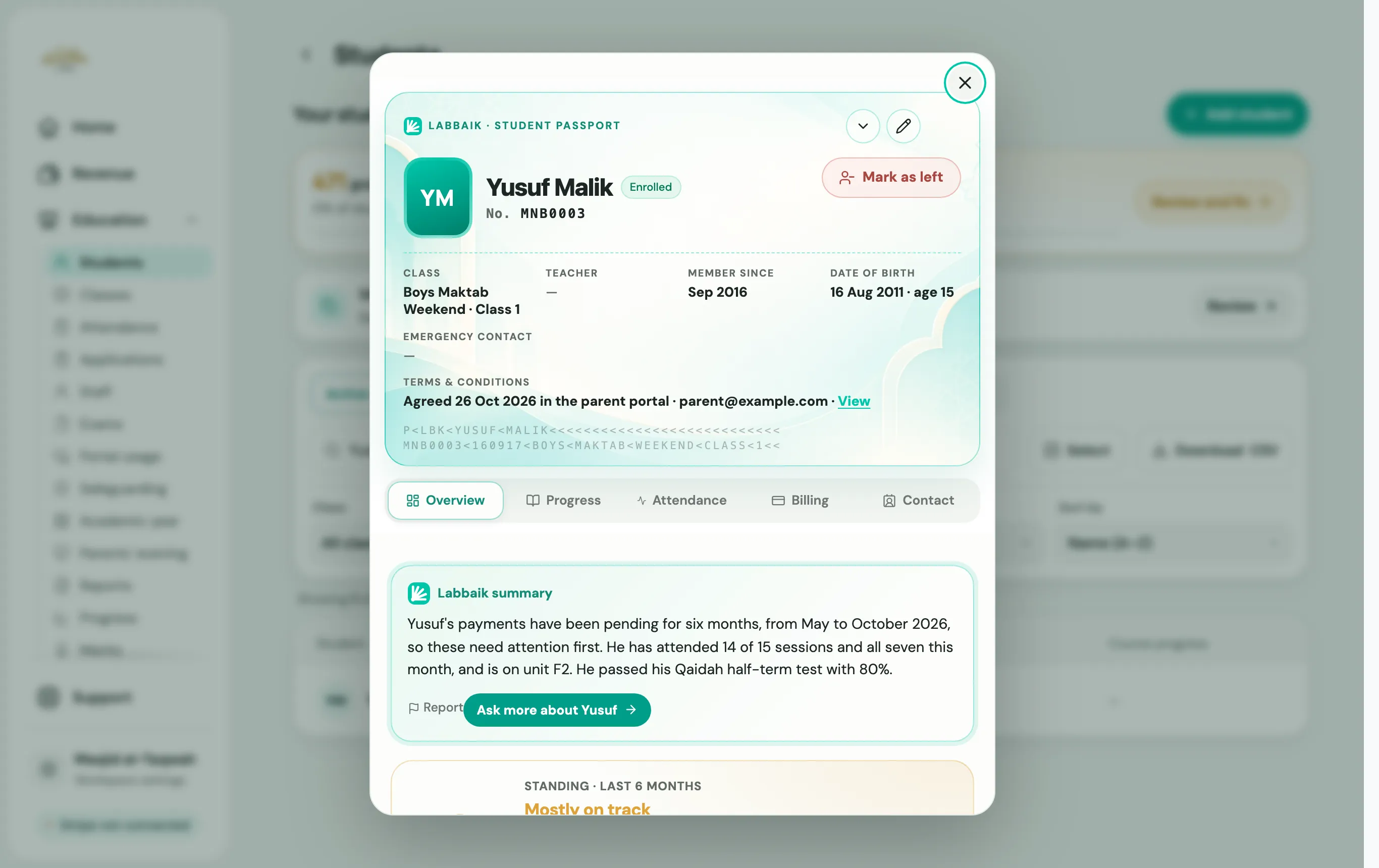
Open a passport
Section titled “Open a passport”- Education → Students, then tap a student.
- Search for the student with ⌘ K / Ctrl K.
- From a family passport, tap one of the children.
- From a payment in Revenue, choose Open [name]’s passport.
The passport itself
Section titled “The passport itself”At the top you’ll see:
- The student: their initials, ringed in green, amber or red by attendance; their name and status; and their student number (No.).
- Class, Teacher, Member since, Date of birth (with their age) and Emergency contact.
- Terms & conditions: whether a parent has agreed to your terms, and when. If not, they’re asked the next time they open the parent portal. This only shows if you’ve added written terms.
The buttons along the top right:
| Button | What it does |
|---|---|
| Show essentials only / Show full passport | Shrink the passport to just the essentials, or show it all. Labbaik remembers your choice on that device. |
| Edit details (pencil) | Change the student’s details. Admins and head teachers only. |
| Close | Close the passport. |
The main button is Mark as left. See When a student leaves. For a student who has left, it becomes Restore student, and there’s an option to Delete permanently.
The tabs
Section titled “The tabs”| Tab | What’s there |
|---|---|
| Overview | A short Labbaik summary of how they’re doing, At a glance for attendance, progress, this month’s payments and their latest exam, any missing details, and their contacts. Choose Ask more to ask Labbaik a question about them. |
| Progress | Their progress in each subject. |
| Attendance | The Last 12 months chart and their Register history. |
| Billing | Their payment status, fees, Stripe details and Transaction history. See below. |
| Contact | Parents and guardians, Emergency contact, Home and notes, and their linked siblings. |
A student in more than one class has a single Classes tab instead of Progress and Attendance, with each class’s progress and register, and Move class or Remove for each one.
The Billing tab
Section titled “The Billing tab”- A status: Active, Overdue, Not on Stripe or Cancelled.
- Payment link to send the family a link to pay, or One-off charge to charge a family that already pays by card for something extra, such as books or a uniform.
- Their Admission fee and Monthly subscription.
- Switch to manual payments, if they’ll pay by cash or bank transfer from now on.
- Log cash or bank payments.
- Transaction history, with Refund on each payment. See Revenue and refunds.
The Contact tab
Section titled “The Contact tab”- Parents and guardians, and the Emergency contact. Admins can Add emergency contact.
- View portal as parent (Ghost Mode): see the parent portal exactly as this family does. See the parent portal.
- Home and notes: their address, with a copy button, and your notes.
- Family · Linked siblings: Link sibling to join brothers and sisters into one family, Unlink to separate them, and Family card to open the family passport.
Teachers and the passport
Section titled “Teachers and the passport”Teachers only see a student’s passport if you’ve given them the View student card permission (see Add staff and set permissions). They open it with Card on the register, or from the progress sheet. Teachers can look but not edit.
The family passport
Section titled “The family passport”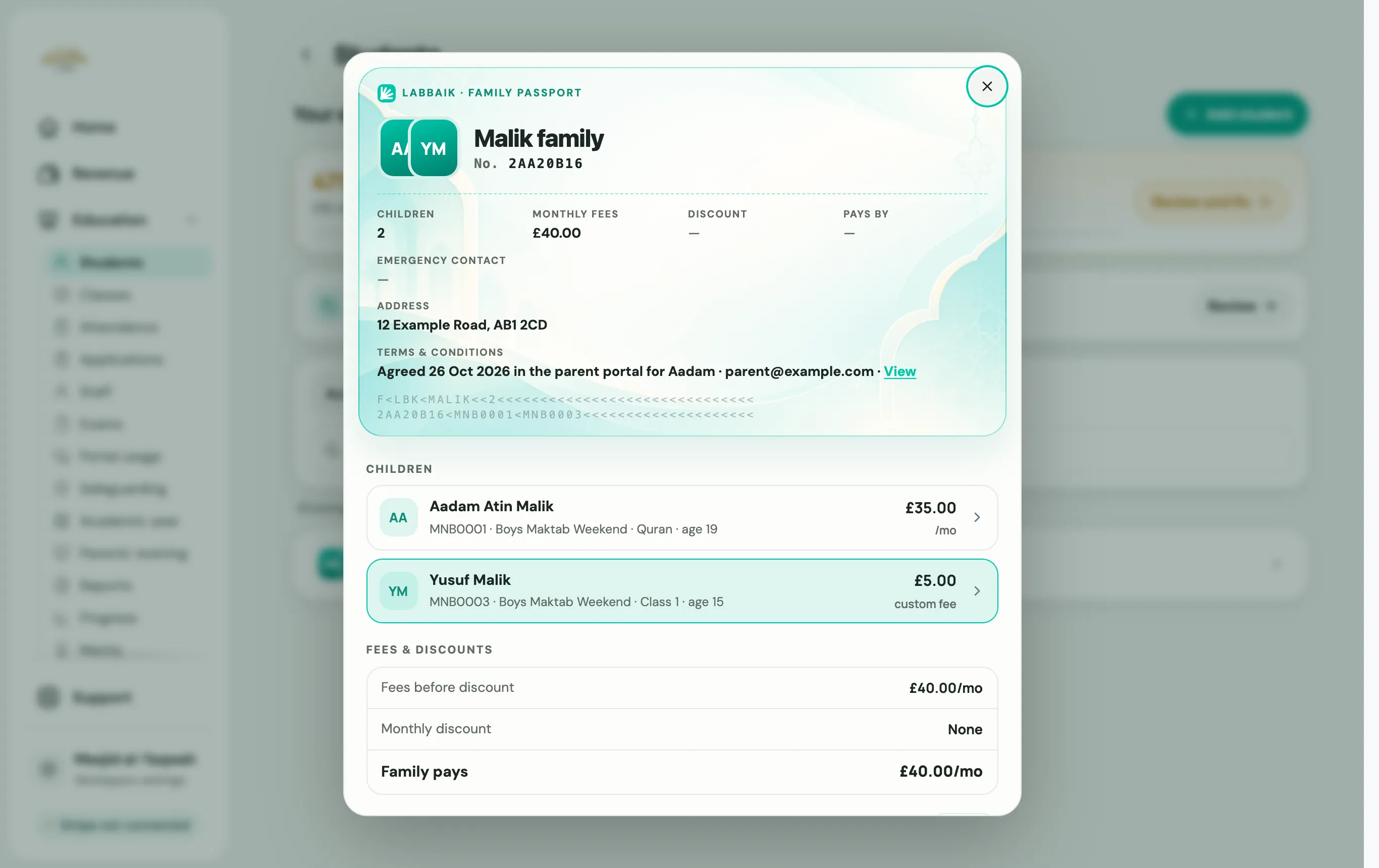
A family is every child with the same parent email, or that you’ve linked as siblings.
Open a family passport
Section titled “Open a family passport”- Education → Students, then the Families tab, and tap a family. (The tab only appears once at least one family has two or more children.)
- Or open any of the children’s passports, go to Contact, and choose Family card.
What’s on it
Section titled “What’s on it”- The family: “[Surname] family”, the lead contact, Children, Monthly fees, Discount, Pays by, Emergency contact, Address and Terms & conditions.
- Children: each child’s number, class and age, with their monthly fee after any discount. Tap a child to open their passport.
- Fees & discounts: fees before discount, the Monthly discount, Admission discount and any Concession, what the Family pays, and their Last card payment.
- Parents & guardians and Emergency contacts, each with call, WhatsApp and email buttons. Choose Add to add another contact.
- Payment history: total paid, number of payments, any failed or refunded. Download it as a CSV, or as a PDF family statement to give to the family.
- History: changes to the family’s links and discounts.
Parents don’t see passports
Section titled “Parents don’t see passports”Passports are for staff. Families see their own child’s details in the parent portal instead.