
Run a parents' evening
A parents’ evening in Labbaik does two things:
- Term wrapped: each student’s term as a short slideshow, covering attendance, progress, exams, a note from their teacher, and class and programme awards. Each family gets a private link to theirs.
- Booking (optional): parents pick a time with each teacher, and a time disappears for everyone else once it’s taken.
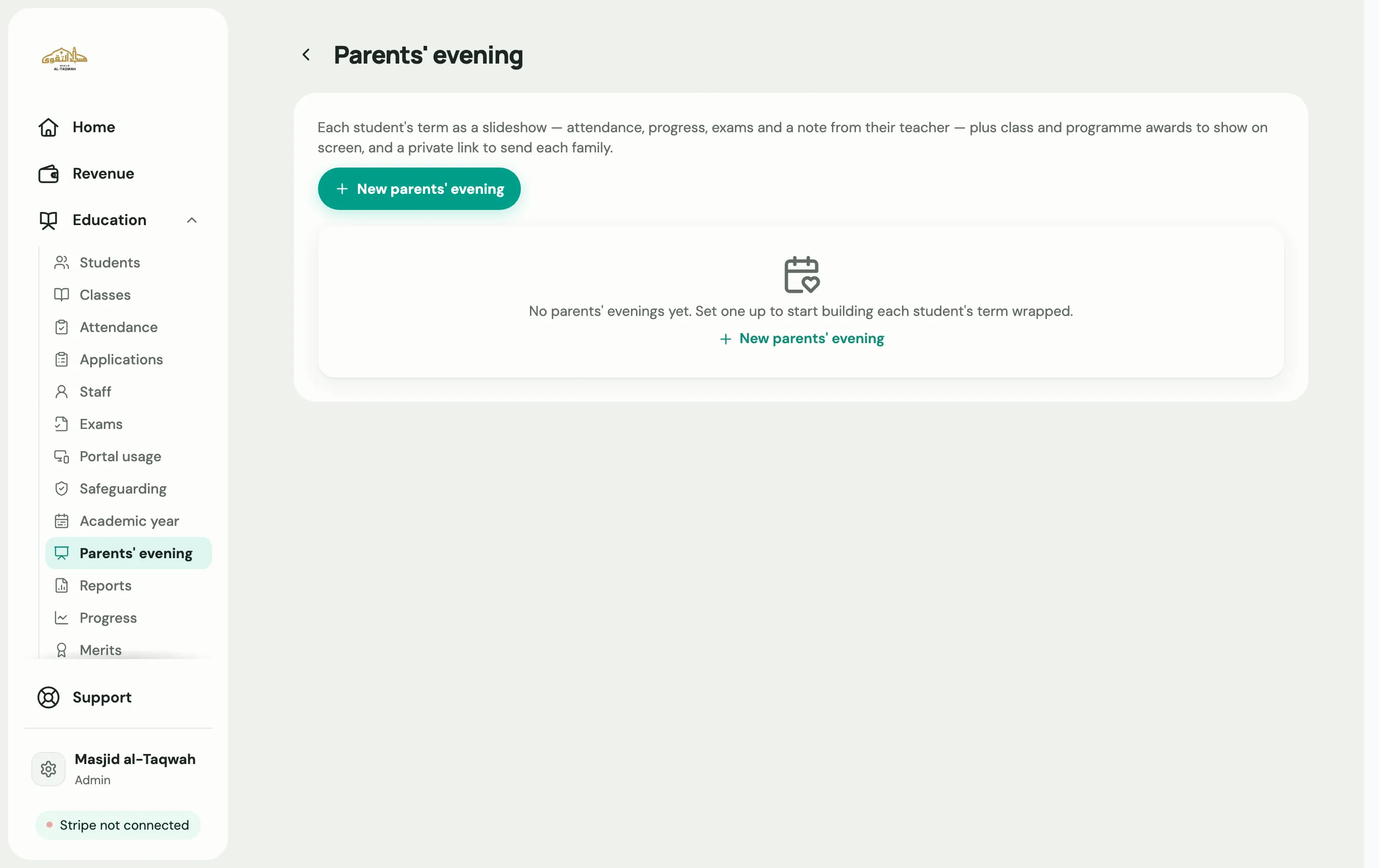
Create the evening
Section titled “Create the evening”-
Go to Education → Parents’ evening and choose New parents’ evening.
-
Give it a Name and the Date of the evening.
-
Use Covers from and Up to to choose the period the slideshows cover, then save.
Let parents book a time
Section titled “Let parents book a time”Booking is off to start with, because many organisations hold a set day that families simply turn up to. To switch it on:
-
Open the evening and go to its Booking tab.
-
Under How do families come?, choose Parents book a time.
-
Choose what One booking is for:
- Each child: one time per child with each teacher. Two children with the same teacher need two times.
- The whole family: one time per family with each teacher, covering every child that teacher sees.
-
Add each teacher (or desk) taking part, with their room, the classes they see, their start and end times, and how long each slot lasts. Labbaik lays out the times for you.
-
If you like, set when Booking closes, and whether Parents can change or cancel.
-
Choose Open booking. Parents see nothing until you do.
How families book
Section titled “How families book”- In the parent portal: a Book a time with the teacher card appears on their Home screen.
- By private link, with no login: choose Email link to N not booked to send every family that hasn’t booked its own link, or copy a family’s link to send on WhatsApp.
- Through the office: for families who phone in, book a free time for any child from the teacher’s schedule. You can also cancel any booking.
To give a teacher a break, take a slot out of their schedule. You can put it back later. Teachers can see the bookings at their own desk.